What would you print with colored ABS?

I was trying to think about what I would print with new ABS colors from MakerBot.  Here’s my list:

  • Green: Little green army men, dinosaurs, a green lantern ring?
  • Yellow: Yellow safety whistles, a yellow ring to defeat the green lantern ring
  • Red: Red clown noses, red dice, replacement monopoly houses
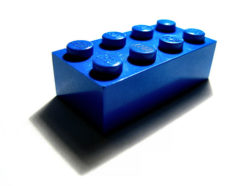
  • Blue: Naked smurfs

Yeah, I suppose that last one was unnecessary…

Vouyerism

One of the interesting things about following along on other people’s MakerBot/RepRap/RepStrap blogs is seeing their workshop/work areas.  Some people have super organized, labeled boxes, and a clean clear uncluttered work space.  Others… are more like me.

  • Photos: I take photos of parts sitting on a sheet of white A4 paper that is being propped up against something.  With a light source it makes for a very clean photo.
  • Working on small parts: I have a long shallow wooden box – about 4′ x 8″ x 2″.  It’s small enough I can put it on nearly any surface, or even the floor.  It’s long enough to give me plenty of work space.  It’s shallow enough that it’s as easy as working on a regular surface – but has the short walls that prevent small pieces from rolling or falling away.
  • Working on large parts/Storage: I own a VERY large library card catalog (it’s a long story).  It’s about 6′ long, with 60 drawers on the front and another 60 on the back.  It stands about 4.5 feet tall and is about 3.5 feet deep.  It’s basically perfect for storing an enormous amount of small parts of … whatever.  I’m only using about three of the drawers so far for MakerBot parts.  It also serves as my large work surface.

Z axis wobble from bearings?

I’ve seen it suggested on the MakerBot Operator’s group (I forget who…) that Z axis rod wobble can be introduced where the bearings fit on the Z axis rods.  This is an interesting possible source of error… and a solution!

It would seem that if the placement of the bearing on the rod can introduce warp, it might be able to slightly counteract warp as well.  I’ve gotten my Z axis wobble mostly under control.

MakerBot Cupcake CNC print resolution

Some people have asked me about the MakerBot’s print resolution.  Although this information can be found on the MakerBot wiki, there’s no harm in disseminating this data. 1  Before I get into some of the technical stuff, let me just say this – the print resolution is pretty freaking good for a $750 DIY robot and it will give a $15,000 commercial printer a run for it’s money.

As a printer that can create objects in three dimensions the normal two-dimensional printer resolution jargon of “DPI” or “dots per inch” doesn’t mean much.  The printing resolution for the X/Y axes is 0.085mm and the resolution for the Z axis is 3.125 microns.  Most of the time you’re going to have a Z axis resolution of about 1/3 of a millimeter.  If you print with layers much smaller than that it will take forever to print without a huge increase in quality.

Or, to put it another way…  if you were to hand me two objects one printed on a MakerBot and one printed on a commercial printer, I’m going to ask you why the heck one of them costs $14,000 more than the other.  I’ve printed some pretty intricate and detailed stuff on my MakerBot.  As I tune it I hope to improve it even more.

  1. If you haven’t poked around the website, I highly recommend it.  There’s a lot of information about the Cupcake CNC, RepRap, fused deposition modeling, robots, and all sorts of stuff. []

It’s not just me!

See!  Spacexula has discovered the hard way she’s a wicked temperamental woman!

Shattered acrylic plastruder…  Yikes!  I printed up one of Zaggo’s Prinstruders – but it appears to be optimized for an early MakerBot Batch 5 with large/small dinos.  If I wanted to use my printstruder I would need to pick up some of the extra parts required and essentially print up a small dino.1  However, I think I’d like to start replacing parts out of my MakerBot with printed parts so that I can keep the originals as backups.  However, I have a feeling a prinstruder out of ABS is going to be much more robust/resilient than the layered acrylic plastruder.  What do I need?

  • 2x 626 ball bearings.
  • 4x M4 bolts, 60mm long
  • 4x M4 nuts (optionally two of them as wingnuts)
  • 1x M6 bolt (30mm long)
  • 1x M6 nut
  • 3x M3 bolts (30mm long)
  • 3x+ M6 washers
  • 3x+M3 washers
  • 4x M4 washers

In addition to these parts, I’ll also need to measure my ‘bot for a small dino equivalent.  Since my extruder barrel is out of commission and the plastruder is just lying on the platform, this is as good a time as any to measure it up.

  1. Shopping list below []

Ball bearings

A standard MakerBot Cupcake CNC requires:

  • 8x 608 bearings for the four X axis threaded rods
  • 2x 608 bearings for the two Z axis pulleys
  • 1x 608 bearing for the X axis pulley
  • 1x 606 bearing for the Y axis pulley

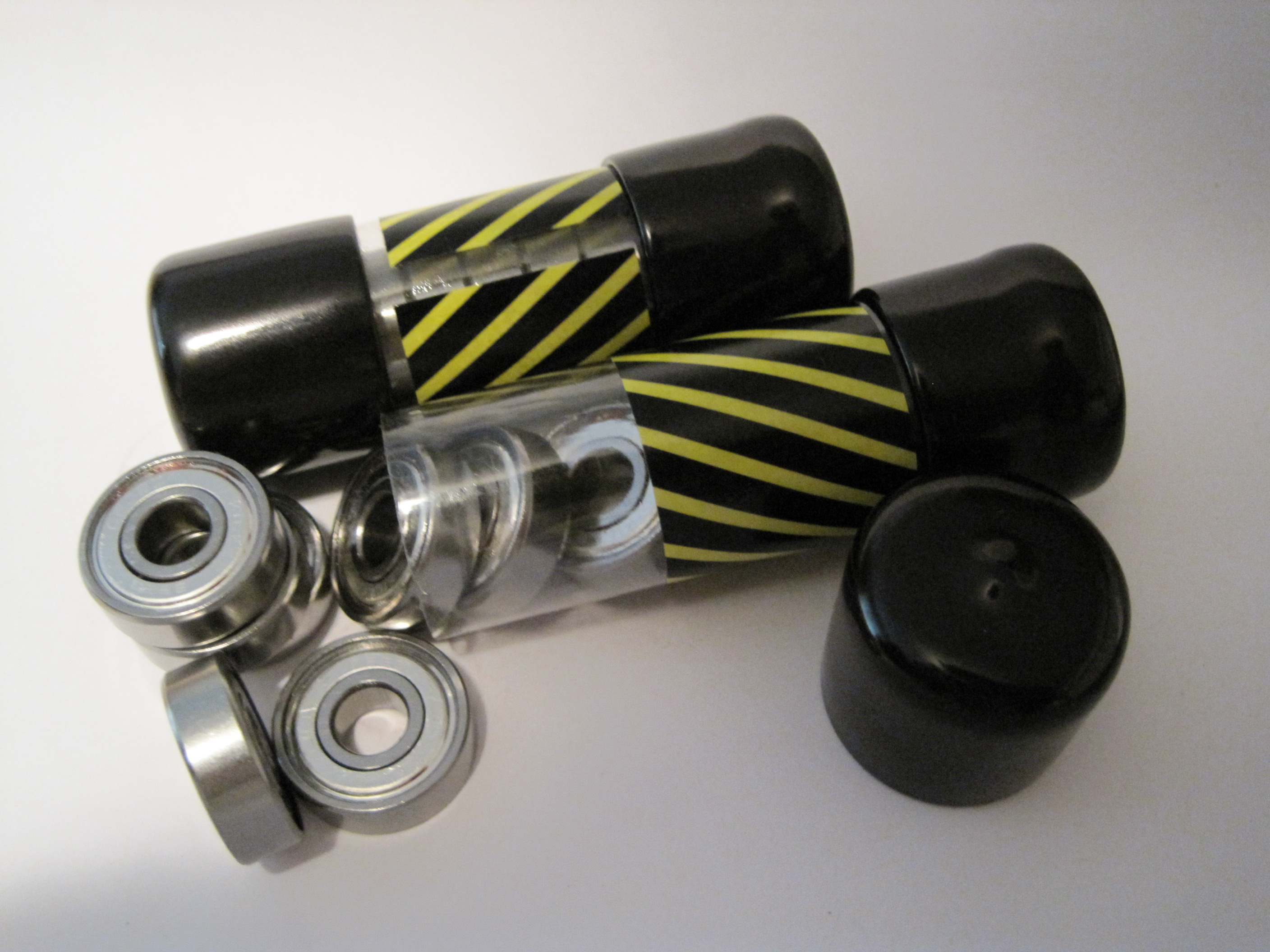
With all the cool things that could be built with the addition of bearings to a MakerBot toolkit I wanted to pick up some additional bearings.  I figure I could print an improved version of my retractable spring loaded tape measure, the microlathe, and other cool things.

But, where to find these things?  My local hardware store didn’t carry them.  I went to a hobby shop nearby which had exactly two bearings for $5.  It sounded expensive, but I’d never priced bearings before and I really just wanted the two at the time.

A few weeks later I had a brainstorm.  Where could I find cheap skate ball bearings?  Well, why not a place that sells cheap skates!  I called my local used sporting goods store and they had a 16 pack of bearings for $5.  Right on.

Ball bearings
Ball bearings

MakerBot, Mendel, Mendel-Mini Build Areas

Owning a MakerBot, I’m not even sure why someone would need something to print pieces much larger than the MakerBot build area.  Printing something as large as just the maximum build volume of a MakerBot would take ages.

While the official longest print logged on the Makerbot website is Zach’s Disney head, clocking in at 2 hours and 45 minutes, I’ve read about people printing for up to 8 continuous hours.  If the build volume for a Mendel is 4.3 times that of a Makerbot, it would take more than 34 hours to fill that build area.

When you’re printing a door hook in 15 minutes, it doesn’t pay to drive to the hardware store.  When it takes 34 hours to print a big plastic brick, you’re better off driving to the gas station, filling up your tank, driving to McDonald’s, filling out an application, working an hour, quitting and demanding your paycheck, driving to the hardware store, buying a single brick, and then driving back home.  I figure that kind of silliness would only take half a day or so.  Heck, with 34 hours, you could do this at least six times over.

How to caliberate and tune Skeinforge for your MakerBot

Update 4/21/2011: This post is more than a year old.  Since then I’ve created ProfileMaker which should eliminate the need for almost all of these steps.  Share and enjoy!


A MakerBot Operators group member, Cliff Biffle, has posted a very comprehensive list his Skeinforge tuning and calibration procedure.  Cliff owns MakerBot #69 from Batch#4, named Kallisti.  Although Cliff has a MakerBot Skeinforge tuning page, it looks like he hasn’t had a chance to transcribe his lab notebook yet.  However, Cliff has been patient enough to type up his Skeinforge calibration information twice for the benefit of the MakerBot Operators group.  Here are links to his original postings on 1/6/2010 and another on 1/15/2010.

The other day I wanted to go back and find his calibration procedure, but had forgotten who had posted it, when it was posted, and which thread it was posted.  Having now found it, I don’t want to lose it again.  It turns out that Cliff had posted it once in response to my own question about dialing in Skeinforge settings in order to print up lego pieces!  Thanks Cliff!

I’ve mashed his two posts together to put together this checklist:

  1. Adjust Temperature:  Skeinforge -> Raft
    1. Find a temperature that allows you to extrude quickly and easily without too much popping or smoking
    2. MakerBlock: I have one of the 1mm thermistors, use the Zach 1 temperature table, and print reliably at 220
  2. Adjust Layer Height: Skeinforge -> Carve -> Layer Thickness (mm)
    1. Cliff uses the default of 0.36
  3. Adjust Extrusion Speed: Skeinforge -> Speed -> Flowrate PWM Setting (if PWM Setting is Chosen)
    1. Make the extruder go slower and lower the PWM value
    2. Cliff uses 230
  4. Adjust Feedrate: Skeinforge -> Speed -> Feedrate (mm/s)
    1. Too fast and you lose the fine detail and introduce errors.  Too slow and it will be too… slow.
  5. Adjust Skeinforge to understand how much plastic is being extruded
    1. Raise the Z axis and perform a test extrusion into the air
    2. Do not pull or stretch the extrusion
    3. Using calipers, measure its diameter, D
    4. Go into Skeinforge and look up the configured layer thickness, T, from Skeinforge -> Carve -> Layer Thickness (mm)
    5. Divide the diameter by the thickness, D/T
    6. Set Skeinforge -> Speed -> Extrusion Diameter Over Thickness (ratio) to D/T
    7. Print a test piece with thin walls
    8. Measure the width, W, of a single extrusion somewhere above the first few layers
    9. Divide the width by the thickness, W/T
    10. Set Skeinforge -> Carve -> Extrusion Width Over Thickness (ratio) to W/T
      • Cliff said this setting may be in Fill, but I think he may have meant Carve

    11. Nick Ames has suggested setting Skeinforge -> Carve –> Extrusion Width over Thickness (ratio), Skeinforge -> Inset -> Extrusion Perimeter Width over Thickness (ratio), and Skeinforge -> Speed -> Extrusion Diameter over Thickness (ratio) all to the same value.  His post also has a lot of information and links about other potential Skeinforge tuning resources.
  6. Adjust other Skeinforge settings
    1. Overlap of grid corners
    2. Infill density
    3. Unpause
    4. Stretch

Replicators

Did I ever mention I have already printed up a MakerBot version of a Stargate SG-1 “Replicator” cell?  Well, I did.  I basically “borrowed” someone’s Sketchup file from the google 3D warehouse, saved to STL, and printed it up!

In any case, it made me think of a cool T-shirt idea.  The back side of the shirt would have a Stargate Replicator with a red circle slash over it, labeled “Bad Replicator.”  The front could have a picture of a ‘bot saying “Good Replicator.”

I’d wear it.