Tap Light Focus Timer System

I’ve been procrastineering on a “sticky note timer” which would incorporate an e-ink display, be portable, updatable via WiFi, show me what I should be working on, and flash lights at me to give me a sense of movement / time passing / and urgency.  Sometimes I use the word “procrastineering” to refer to when I start to spiral on a project and end up in analysis paralysis.  But, I think it is more appropriately used when I’m doing a deep dive on a project when I really have something much more important / urgent I should be working on.

A long time ago I added a few components to an off the shelf dollar store tap light and turned it into a game buzzer.  While the sticky note timer project was marinating  / incubating1 in the back of my brain, I realized that maybe I don’t need or even want something that high-tech.  Maybe what I need is something dead simple?  As cool as the sticky note timer project is – and it really is neat – there’s a lot of pieces to the puzzle and a fair bit of maintenance that goes along with it once its finished.  You have to connect to it, upload a list, set up timers, etc.

I finally decided on something not so easily adjustable, but still flexible in it’s simplicity.  Rather than making the setup (adding / updating / uploading lists to a timer) something I have to do in order to start the timer, what if I made it part of the timing?

First, let’s look at what the setup.  A dollar store tap light which includes a lot of handy parts – a battery holder, a push button switch, several springs, and a simple and at attractive enclosure.

This slideshow requires JavaScript.

On the far left is a basic off the shelf dollar store tap light.  Next to it are two others I had previously modified to work as game / timer buzzers2  The last picture is the wiring diagram, except that I wired the ATTiny chip to the positive wire coming from the button switch.  Whenever I hit the button, it will toggle the circuit on and off.

Using some parts from my electronics bin3, I cobbled together a prototype on a breadboard that would do the following when the button was hit:

  • Turn orange for 1 minute and beep 3 times in the last 3 seconds
  • Beep once more and turn green for 12 minutes, then fade from yellow through orange over the last 3 minutes
  • Flash red and beep three times after 15 minutes had lapsed (12 minutes of green and 3 minutes of color fading)
  • Turn off, go to a low power mode, and then wake up long enough to flash blue every 8 seconds
  • After 5 minutes, it would flash green and beep twice
  • Then keep doing this 8 second blue flash and green light plus beep every 5 minutes
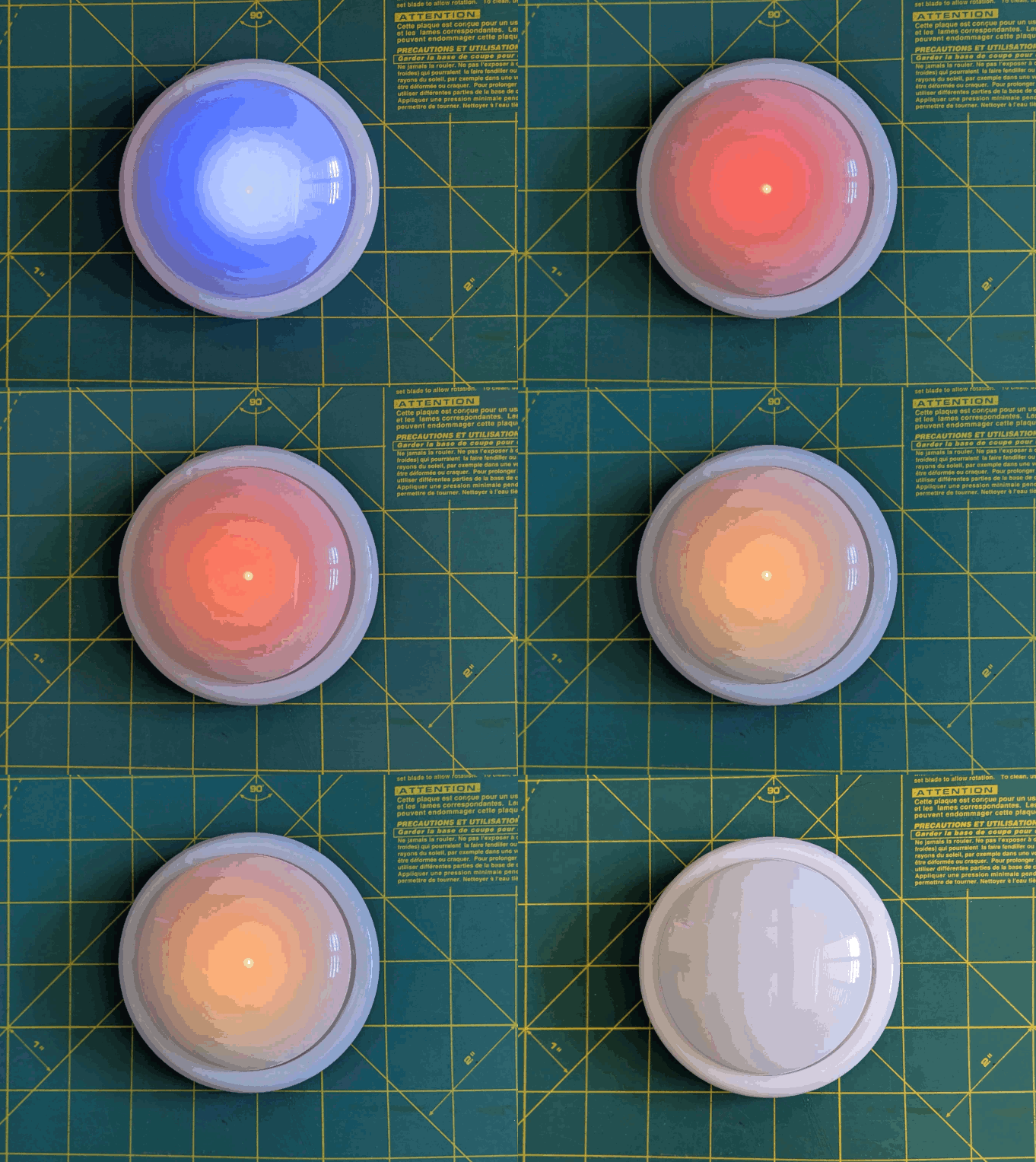
Animation of LED timer button

You’re probably wondering – what’s with all these timers and lights and beeps?  Here’s how I use them:

  • Place and slap the button to get going
    • I put my phone on my desk and the timer right on top of my phone.  It’s a big 4″ diameter timer and covers the phone pretty well.  I can’t pick up my phone without seeing this timer ticking down.  This is a huge difference between a phone app and a physical thing standing between me and my phone.  There are some web browser based apps – but these don’t really work for me.  Either I have to keep that window open and on top or … I’ll forget it exists.  This timer is right there, front and center, on my desk and lit up no matter where my desktop might take me.
    • Plus, it’s actually a little therapeutic to slap the tap light.  Pushbutton switches like this are built to take a bit of abuse and the physical action of hitting the light is a lot of fun.
  • Orange for 1 minute
    • This is the replacement for the “maintain / update a list.”  Instead of having to fuss with a list, I’ve dumped myself directly into work.  I’m suddenly racing the clock for 60 seconds to write all the things I want to try and accomplish in the next 15 minutes.  Maybe it’s a few emails, make some phone calls, or write / edit a document.  After 57 seconds, the buzzer will beep three times to let me know that the 15 minute timer is about to start.
    • Or, if you already have a particular task to work on, you could use this time to follow a process like Steven Kotler’s suggestions on tactical transitions to a a flow state4.  His three step process is:
      • Anchor your body
        • Practice box breathing.5  You could box breathe 3 times in one minute and have a few second left over to psych yourself up.
      • Focus your mind
        • Write down one clear goal.
      • Trigger your ritual
        • Recite a mantra, perform a gesture, start a “work” playlist
  • Green for 15 minutes
    • It’s go time!  Whatever I wrote down, now I’m in a race to work on those things – and those things only.  I can’t let new emails, calls, etc, distract me – that buzzer is going off in 15 minutes.  As the timer closes in on 15 minutes, with just 3 minutes to go, it turns yellow and fades to orange.  If I look up / down and see this, I know I’m in the home stretch and I’ve got to start moving fast to wrap things up.
  • Red alert!
    • Once the 15 minutes is up the light flashes red and beeps to let me know I’m off the hook.  Now, if I’ve already hit peak productivity, I could keep going.  If I got sidetracked, it’s an alert for me to restart the timer and get back to it.
  • Blue flashes, 5 minute green flash and beeps
    • These blue flashes happen once every 8 seconds6 just to keep the timer present in my vision so it doesn’t just appear into the mess on my desk.
    • If I finished out the 15 minute block of work time and I don’t stop the timer, the 5 minute timer is my reminder to return to my desk, reset the timer, and get going again.
    • If I ended up working past my 15 minute block of work time, the 5 minute beeps still give me a sense of how much time has passed.7
    • Importantly – if I get distracted by a sidequest, one of the beeps every 5 minutes is bound to catch my attention and remind me I’m supposed to restart the timer and get back to work.

So… does it work?  For me, yes!  Here’s why:

  • The hardest part of getting started is getting started.  My tendency is to want to collect all the stuff I’d need, get real comfy, make a list, look up some documents, etc.  This system short circuits all that.  I just need to be able to slap the big button sitting on top of my phone.  If I can manage that, I get 60 seconds to collect myself and then it’s time to rock and roll.  That’s enough time to take some deep breaths, start a playlist, or just sit quietly before I get started.
  • It covers up my biggest distraction.  Unlike an app on the phone or my desktop computer, I can literally cover up my phone with this big damn button.  I won’t see any notifications and if I want to pick up my phone, I have to actually look at and ouch the button – which is itself a reminder to get back to work.
  • It plays into a sense of play, urgency, and my own overdeveloped sense of competitiveness.  I enjoy hitting the timer to turn it on – and I want to beat that 15 minute timer.
  • The 5 minute timer acts like a built in break timer.  If I can get through 15 minutes of work, I can goof off, write a blog post, and without doing anything else that 5 minute timer can bring me back.
  • It includes a “failsafe” to bring me back to the timer if I get distracted by a sidequest.  If I miss the 15 minute timer, there’s another 5 minute timer around the corner.  Even between timers, there’s an intermittent flash of blue light to grab my attention.

The only meaningful “downside” to this timer button for me is there’s no pause button.  However, this isn’t exactly bad.  It helps me really hone in on what’s important and what’s interesting.  If a family member asks me for something or a call comes in, I just need to weigh the benefit of addressing the intrusion against having to restart the timer.  And realistically, if I pause the timer, I’m going to need some time to drop back into “flow” anyhow.

Sticky Note Timer
  1. Ah, just what I need! A new project!
  2. Sticky Note Timer, parts arrived!
  3. Seeed Studio XIAO ESP32C3 and a small sticky note display
  4. Brainstorming More E-Ink Stuff
  5. Smol Fonts for E-Ink Displays
  6. Tap Light Focus Timer System
  1. Fermenting?  Festering? []
  2. The older ones would flash orange a few times to alert you the game was going to start, turn green, fade from yellow to red, then flash red and buzz after 15 seconds. []
  3. I used an ATTiny45 because I had one, but it’s not much more expensive to use an Adafruit Trinket, a buzzer, a RGB/neopixel LED, and some wire.  In a subsequent version, I also used a small prototyping board like the Adafruit Perma Proto Boards []
  4. It’s the second slide []
  5. TLDR:  Breathe in slowly through the nose for 4 seconds, hold for 4 seconds, breathe out slowly through the mouth for 4 seconds, hold for 4 seconds, repeat []
  6. Because that’s the longest the little microchip can do between “deep sleep” to conserve battery life []
  7. I may adjust the program so the first five minutes is 1 beep, second five minutes is two beeps, etc []

Smol Fonts for E-Ink Displays

Posts are so much more interesting with pictures, don’t you think?

I’ve been playing with different screen designs for my e-ink display.  After initially going with some “to do” style items, I quickly pivoted to playing with some more interesting screens while I was working out the best way to update the display with new content from lists.  This wasn’t a totally worthless chase, however.  Fiddling with various ideas and tests about updating the display and coming up with different images lead me to chase down good looking fonts (Futura variants and Roboto being attractive and friendly fonts) and fonts that look good at very small scale (UNSCII, Tom Thumb, TinyFont for TinyGo displays, and Terminus).  Adafruit has a great toolchain for converting a font from an PC recognizable font to a BDF format font which is much smaller and can fit into a microcontroller.1 It involves2 using FontForge to remove unused glyphs, restrict the font to a specific bitmap size, exporting the font, then using an online tool to convert it to a BDF format.

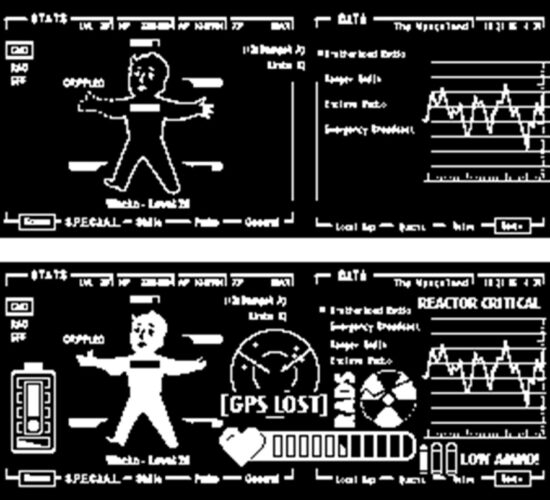
For extra visual interest, here’s the first Fallout themed screen I uploaded and the latest:

Things are not looking up, my dude

The main screen was inspired by the work of CrowTeeRobot on the RPF.  I took a few screens, jammed them together, added and deleted a bunch of stuff.  After all that, there was still a fair bit of negative space, so I kept adding in more things.  A low battery indicator, life point indicator, a GPS lost / map indicator, an increasingly worrying radiation counter, and a “low ammo” indicator.  If these end up getting installed into a PIP-Boy, I’ll probably try to add a green transparency over it to give a more retro feel.

For working with an e-ink display to go into a PIP-Boy, it really only needs to cycle through a set number of screens.  This could just be done by having the MCU just play new screens every few minutes (keeping in mind the Adafruit guides recommend updates be no more frequently than every 3 minutes) or having it be slightly interactive and update the screen way less often (say every 10 minutes) but can be set to a new screen manually by pressing an associated button.  However, this just requires building a few static screens, saving them as BMP files, tossing them in, and letting the MCU detect button presses, capacitive touches, or some other kind of input.  There wouldn’t be any kind of need for a text overlay.  That said, while I was playing with the screen, I discovered that some of the graphic text I had included was surprisingly readable at very small scale.  This lead me back to my main project…

For my note / reminder / task purposes, I’m still toying with how the workflow would go.   Since I want a device that is untethered from a USB cable and has

Here are some ideas I’ve gotten to work and played with:

  1. ESP32C3 as a WiFi access point and provides an HTML form which the phone or my computer can connect to.  The problem with this is then I have to disconnect my phone/computer from the network, connect to the ESP, send an update through the HTML form, disconnect and reconnect to the router.
  2. Cell phone as a WiFi access point, the ESP32C3 connects and fetches data from the phone.  The problem with this is then I would have to disconnect the phone from the router, let the device connect, pull data, then I would reconnect the phone to my router for regular usage again.  This is pretty clunky.
  3. ESP32C3 connects to same WiFi network, then tries to push/pull data from a local IP address.  Also possible is for the ESP32C3 to connect to a webservice via an API, but then this makes the device dependent upon proximity/access to both my home router and internet access.
  4. The best way forward is probably a Bluetooth connection to my phone and an associated app.  I’ve written some small apps using the MIT App Inventor, so this looks like the best way forward.  I’m thinking, something along the lines of:
    1. Use the app to create an ordered list of items
    2. Press a button on the device, to “wake” it – which also makes it try to connect over Bluetooth to the device it’s been paired with, and pull the latest list
    3. The device disconnects from Bluetooth, displays the topmost list item, and goes to sleep
    4. I can can press a button to start a timer until X seconds has elapsed
    5. When the time elapses, the device buzzes, vibrates, and/or lights up an LED
    6. I can then press a button to sleep or another button to advance the task to the next item
    7. Possibly an interval timer as well to remind me to get up and walk around / move :)
Sticky Note Timer
  1. Ah, just what I need! A new project!
  2. Sticky Note Timer, parts arrived!
  3. Seeed Studio XIAO ESP32C3 and a small sticky note display
  4. Brainstorming More E-Ink Stuff
  5. Smol Fonts for E-Ink Displays
  6. Tap Light Focus Timer System
  1. This one, League Spartan Bold 16, looked particularly good []
  2. as best as I understand it… []

Brainstorming More E-Ink Stuff

I’ve been on vacation for a few weeks and a big part of that was completely leaving work and a computer/laptop entirely behind.  If I had a computer handy, I would have been tempted to noodle around on some project, jot down some notes on some new harebrained scheme, and potentially slide sideways into working.  And, even if I didn’t do any of that, I would have been looking at a screen – rather than the scenery I had worked so hard to go and see.

Even so, I couldn’t help but notice things that still helped germinate ideas.  In Europe lots of grocery stores and especially pharmacies made use of e-ink price tags.  Pretty nifty since they could probably be updated wirelessly via Bluetooth or perhaps with an IR protocol of some kind.  These tags were often the really cool tri-color variants1 and I only l learned of the quad color variants just today.2

With the weather heating up, it might be neat to have a weather display – but I don’t just want another weather display.  I would prefer something that had data I’m interested in – just the one task I have to be working on right now, the time I’ve allotted myself to work on it, maybe the weather, a timer button that can start/stop lights and/or a buzzer.  I dunno, this is all very much in the “brainstorming” stage while I’m still fumbling around with e-ink code.

Random ideas:

  • It would be neat to have exercise, stretching, standing, eating, drinking, etc breaks built into the display.  (I do realize there are circular themed smart-watch systems…)
  • My job requires various tasks with various timelines and monthly-ish metrics.  It might be neat to have various trackers for that kind of data.
  • I know various wearables display neat graphics like circles that get completed, achievements, etc, when the person reaches a certain number of steps or level of activity.  That would be neat to incorporate as a way to “gamify” certain aspects of my life / job.  Additional colors would certainly add to this kind of flair.
  • I haven’t given up on the idea of feedback from the sticky-e-note via buzzer,  speaker, vibration motor, haptic feedback, and LED’s or with inputs from buttons or touch capacitive sensors.  However, the more of these things I pack into a device, the more unwieldy it becomes and longer it would take to learn / build.  There’s certainly something to be said for a stripped down, elegant solution versus building a chunk pile of wires tethered to a USB cable.

Having just come back from vacation, my home office / lab area is an absolute catastrophe.  It’s a tangle of all the things I might have packed, almost packed, unpacked, and the remnants of all the things I kind did while walking around all the aforementioned stuff.  At a glance, I’m probably operating on about 10% of the normal surface area – mostly now devoted to a thin, windy, and treacherous path from the door to my desk.

Sticky Note Timer
  1. Ah, just what I need! A new project!
  2. Sticky Note Timer, parts arrived!
  3. Seeed Studio XIAO ESP32C3 and a small sticky note display
  4. Brainstorming More E-Ink Stuff
  5. Smol Fonts for E-Ink Displays
  6. Tap Light Focus Timer System
  1. Black, red, white-gray []
  2. Black, red, yellow, white-gray! []

Seeed Studio XIAO ESP32C3 and a small sticky note display

The chief benefit of the XIAO ESP32C3 appears to be it’s very low cost.  $5 for a microcontroller which can run Arduino or CircuitPython and has WiFi and Bluetooth sounds like a smoking deal.  As I’m fumbling my way through this project, I’m finding some little hiccups learning experiences along the way.

  1. The XIAO ESP32C3 doesn’t support USB file transfer, which is going to make putting CircuitPython on the board more interesting.
    1. One of the most convenient aspects of CircuitPython is being able to update the MCU over USB.  In an ideal world, I would have worked out the kinks on this project and then transferred the program to a cheaper Board.
    2. I went with this particular board since that’s what the author of the Hacksterio article used.  For $2.50 more I could have gotten a XIAO ESP32S3 which would support native USB rather than the ESP32C3.  I’ll just make sure to order some S3’s next time!  :)
  2. Using the guide linked above, you need to enable “Experimental Web Platform features” in Chrome.
  3. My “XIAO ESP32C3” showed up in the Adafruit web based ESPTool.  I noted the MAC address, erased the MCU (~15 seconds), and uploaded the new firmware BIN file from CircuitPython.org (~12 seconds).
  4. After futzing with Mu for a while, I ended up following an Adafruit guide and installing the portable version of Thonny on my PC which allowed me to update the board’s settings.toml file as described in the Adafruit guide.
  5. I wasn’t having a lot of success figuring out the MCU’s local IP address, so I used the Adafruit code for having print the IP address to the terminal.  For some reason I found the MCU’s MAC address appearing on my router’s wireless client page.
  6. Uploading files from my PC to the MCU using Thonny wasn’t quite intuitive.  There’s a file navigator on the left side of the screen.  On the top you can use to find files on the local PC and on the bottom navigate to the target MCU folder.  Once you’ve got these, you can right click on the local files and upload them to the target folder.  Later, I discovered I could select multiple files and upload them all at once, which made adding libraries way faster.
  7. After installing CircuitPython on the XIAO, I keep bumping into the error “ValueError: D8 in use”.  It took WAY longer to figure out this problem than I was anticipating.  After much hand wringing and rending of clothes, it turns out that if you don’t call “displayio.release_displays()” when initializing the board, it will claim this or that particular pin is in use and won’t let you do anything interesting.
  8. Even after solving that problem, it turned out that I was trying to use the wrong driver for the board.  I started with “il0373” which wouldn’t display anything, then “uc8151d” which also displayed nothing, and finally “ssd1680” which did work.

Here’s the pin connections I’m using, going from the label on the e-paper display, to what the acronym means, to the color of the wire on the cable, to the XIAO pin, to what that pin means:

E-Paper Meaning Color XIAO Meaning
BUSY Busy purple D4 D4 / SDA / GPIO6
RST Reset white D3 D4 / A3 / GPIO5
DC Data Command1 green D2 D2 / A2 / GPIO4
CS Chip select2 orange D1 D1 / A1 / GPIO3
CLK SPI SCK pin3 yellow D8 D8 / SCK / GPIO8
DIN SPI MOSI pin blue D10 D10 / MOSI / GPI10
GND Ground brown GND Ground
VCC 3.3 volts gray 3V3 3.3 volts

Here’s the code I could get working:

import displayio
displayio.release_displays()
import time
import board
import wifi
import socketpool
from adafruit_display_text import label
import adafruit_requests
from fourwire import FourWire
import board
import busio
import digitalio
from adafruit_ssd1680 import SSD1680
#import terminalio 
#import ipaddress
#These last two commented out as I try to figure out what's still necessary to get this project to run
spi = busio.SPI(clock=board.D8, MOSI=board.D10) display_bus = FourWire( spi, command=board.D2, chip_select=board.D1, reset=board.D3 ) display = SSD1680( display_bus, width=296, height=128, rotation=270, busy_pin=board.D4 ) # 🔧 Set custom hostname BEFORE connecting to Wi-Fi wifi.radio.hostname = "Sticky" # change this to whatever name you want print("Connecting to Wi-Fi...") if wifi.radio.ipv4_address: print("Connected to Wi-Fi!") print("My hostname:", wifi.radio.hostname) print("Connecting to SSID...") print("My IP address is", wifi.radio.ipv4_address) ipad = wifi.radio.ipv4_address else: print("Failed to connect to Wi-Fi.") # Fetch the IP address if wifi.radio.ipv4_address: ip_text = str(wifi.radio.ipv4_address) ip_text = "19.2.168.0.1" etext = f"Hello! It's me! \nA TOTALLY \nresponsible \nadult!" else: etext = "Hello eInk!\nWi-Fi not connected." from adafruit_bitmap_font import bitmap_font # Load a larger font (adjust path as needed) font = bitmap_font.load_font("/lib/Junction-regular-24.bdf") splash = displayio.Group() text = label.Label( font, text=etext, color=0x000000, x=10, y=15, line_spacing=0.7 ) bg_bitmap = displayio.Bitmap(296, 128, 1) bg_palette = displayio.Palette(1) bg_palette[0] = 0xFFFFFF # White background bg_sprite = displayio.TileGrid(bg_bitmap, pixel_shader=bg_palette) splash.append(bg_sprite) splash.append(text) print(etext) try: display.root_group = splash display.refresh() print("Waiting for refresh to complete...") time.sleep(5) print("Display refresh called.") except Exception as e: print("Error during display refresh:", e)

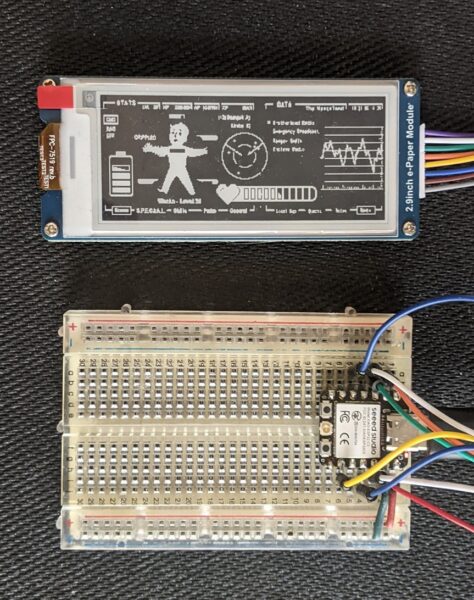
Here’s the progress so far:

This slideshow requires JavaScript.

Having gotten this to work, I’m pretty excited about the possibilities.  I would love to have a Doctor Who psychic paper display4 , an addition to my kid’s Pip-Boy, or a physical desktop widget that displays interesting / useful information.

With this setup I can manually hardcode a new message and update the e-paper display.  Not super useful in and of itself. However, with some elbow grease and a few late nights, I’m hopeful I can add the ability to connect to a Bluetooth device and update the screen, set off a buzzer, or set off a small vibration motor.  Right now there are 5 pins left unused:  D0, D5, D6, D7, D9.  I figure I’ll need one to wake the device from a deep sleep, one for an RGB / NeoPixel LED to provide a little instant visual feedback, one for a buzzer, one for a vibration motor, and then maybe one more for another button.

Sticky Note Timer
  1. Ah, just what I need! A new project!
  2. Sticky Note Timer, parts arrived!
  3. Seeed Studio XIAO ESP32C3 and a small sticky note display
  4. Brainstorming More E-Ink Stuff
  5. Smol Fonts for E-Ink Displays
  6. Tap Light Focus Timer System
  1. Data / Command selection [high for data, low for command] []
  2. SPI chip selection, low active []
  3. Clock []
  4. Thus, the “responsible adult” above []

Sticky Note Timer, parts arrived!

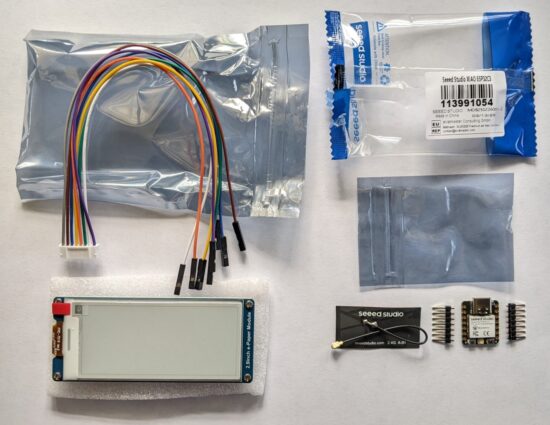
The parts have arrived for this project!  The three XIAO boards cost $17.33, were ordered on 04/10/2025 and landed on 04/17/2025. 1  The 2.9″ e-ink display cost $24.99 from Waveshare, were ordered on 04/11/2025 and landed on 04/14/2025.23

Parts!
Parts!

I’ll need to solder in the headers for one of the XIAO chips, connect it via jumpers to the e-ink display, and then see if I can update the screen with content.  For now, I’ll just power it with USB until I get it working, then solder in a LiPo connector.

Sticky Note Timer

  1. Ah, just what I need! A new project!
  2. Sticky Note Timer, parts arrived!
  3. Seeed Studio XIAO ESP32C3 and a small sticky note display
  4. Brainstorming More E-Ink Stuff
  5. Smol Fonts for E-Ink Displays
  6. Tap Light Focus Timer System

  1. This price includes shipping and after a $5 welcome coupon code for my first order []
  2. Again, this includes shipping []
  3. I’m not without some degree of self-reflection.  I’m ~$45 deep on this project which would buy four kitchen timers and 4,000+ sheets of off-brand sticky notes.  But, what price knowledge?  WHAT PRICE KNOWLEDGE?!?!? []

Ah, just what I need! A new project!

A rough sketch
A rough sketch

If you’re anything like me, you’re familiar with the idea of Too-Many-Tabs™️.  I see a cool thing, I open it in a tab, I might organize tabs, I might bookmark them, and see them now and then.  The worst part about this for me is that as long as they’re not yet bookmarked and organized, I don’t want to close the tabs – so that I don’t “forget” about them.  But, as long as I’ve not bookmarked/organized/blogged about something, it will feel like it is still using some level of brain bandwidth, running as a “background process” using a small, but non-zero, amount of brain attention.  The only good ways I’ve found to excise these ideas/tabs/processes is for me to act on them (get started building and/or blog about them) or kill them (bookmark/organize).

I’ve seen several projects recently which are swirling around several similar concepts for me:

All of these projects do interestingly adjacent tasks – displaying relevant information, in an attractive way, serving as a reminder, good either on a desktop or perhaps a wearable.  I could see making a version of Tymer as a wearable watch.  The build seems fairly straightforward – buttons to input times, deep sleep functions which wake once a minute to determine if it needs to set off the vibration motor.  I would love a small simple e-display such as the ESticky – to sit on my desktop, perhaps on/near/in front of my monitor.  What’d I’d really like, of course, is something that’s kinda does some of each.

I ordered the parts for the ESticky, since the Tymer appears to basically require just a battery charging board (already integrated into the ESticky’s Seeed Studio XIAO ESP32C3) and a vibration motor (which I have a stack of already).  I’ve not used a Seeed Studio product before, but it appears to be similar in formfactor and function to the Adafruit QtPy’s I’ve been using in various recent projects.  Because I know I’m going to want to use one XIAO board as my dev board with headers and breadboard, one in the project itself, and one because…  they’re cheap ($5) and there’s even odds I’ll blow one up.

My plan is to build a direct copy of the ESticky on a breadboard, add the vibration timer and buttons to manipulate it, see if I can do it in a more permanent format by soldering it together, then design / print a case.

I’ve never worked with a Seeed Studio product and not played with eink displays yet.  Hopefully this will be fun!

Bonus:  Now that I’ve purchased some of the parts, I can close dozens of tabs!

Sticky Note Timer

  1. Ah, just what I need! A new project!
  2. Sticky Note Timer, parts arrived!
  3. Seeed Studio XIAO ESP32C3 and a small sticky note display
  4. Brainstorming More E-Ink Stuff
  5. Smol Fonts for E-Ink Displays
  6. Tap Light Focus Timer System