I was annoyed by two things today and I have decided to share them with you. ((Photo courtesy of Göran Arvidson)) It’s more about the sharing than actually imparting information, but these are two things I feel kinda strongly about. The day is young yet, so I reserve the right to add more things to this list. :)
Online forms that require multiple steps across multiple submission pages. The first thing this kind of UI tells me is that the people who wrote the page wanted something done quickly and easily (for them) and didn’t spend a lot of time thinking about usability. Because I have a tendency to overthink things, I sometimes go back and revise an earlier step depending upon what I see in a later step. When I see an online form that requires multiple steps I will typically feed it bogus information first so I can see the rest of the steps.
Um. That’s all I’ve got to grumble about today.
Actually, in hindsight, if those are my biggest problems of the day, I’m doing pretty well!
The other day I found a great post that explained how to add a custom button to the WordPress Visual TinyMCE editor.1 It was fairly simple and concise and even includes a zip file of all the parts you would need to install a button into WordPress’s visual TinyMCE editor. I’m not at all sure I could do a better job than that guy, so I’ll just direct you to the link above. :)
The current version of my WordPress OCD Plugin Stats plugin, is somewhat… clunky.1 When I wrote it I didn’t know that WordPress.org had an API for it’s plugin statistics.2 Thus, the current version essentially scrapes particular WordPress.org plugin pages for information and drops it into the WordPress dashboard.
After poking into the stats on one of my plugin pages the other day I discovered that the source code for the page included several calls to a WordPress.org API. Why should I bother scraping and interpreting a page of HTML when I can just ask WordPress.org to deliver the exact data I need in a nifty JSON format?! I’m very much looking forward to adjusting this plugin to use a more direct and simple call to the WordPress API rather than scraping plugin pages.
While posting about my DrawBot adventures, I’ve become increasingly annoyed with my own post series WordPress plugin. If only it had a simple button in the WordPress editor to drop the shortcode for an existing series, it would instantly become so much better. Thus inspired, I delved into WordPress.org and sought out the answers. What I discovered is that while it’s not particularly difficult to add a button to the WordPress text editor, it didn’t seem to be very well documented. I’m still working on how to add a graphical button to the WordPress TinyMCE visual editor, so stay tuned for that. I was ultimately able to glean the necessary information from the WordPress “Quicktags API. However, for your sake1 I’m distilling what I’ve learned right here.
First, I’ll give you an overview of what we’re going to do. If you’re looking to add a button to the WordPress editor, it’s probably because you’re working on a plugin. Thus, I’ll assume you have a working knowledge of plugin development. Your plugin will need to include, at a bare minimum, one action hook and one function which performs the double duty of creating the button and giving the button some kind of ability.
// This action adds a script to the script footer on administrative pages
add_action( 'admin_print_footer_scripts', 'MBSS_quicktags', 100 );

// This is the function that is run at the end of the administrative pages in the script footer
function MBSS_quicktags()
     {
     // Optional database interactions
     // I used this section in my plugin to run a query on the database and return information that would be used in the button
     ?>

     <script type="text/javascript">
     // Creates button in the text editor
     QTags.addButton( 'MBSS_tag_id', 'Add Series', MBSS_add_series_js );
     // Function to append the series shortcode to the end of the post
     function MBSS_add_series_js()
          {
          editor = document.getElementById('content');
          editor.value = editor.value + "\n" + "EXAMPLE TEXT TO APPEND TO END OF POST";
          }
     </script>
     <?php
     }
And there you have it! One action hook and one function which adds some javascript magic to your WordPress editor in the form of a simple text editor button!
While looking at the source code on my Simple Series plugin page, I began to wonder how WordPress.org was serving up all those nifty little stats into the downloads graph. ((Photo courtesy of Windell Oskay)) What I discovered is that there’s a little bit of jQuery magic going on that pulls download data from a WordPress.org API, formats it for niftiness, and inserts it into the dynamically draw SVG graphic of the downloads.
In case you’re interested, the API call looks like this:
This weekend, almost an entire year from the last update, I made some revisions to my Simple Series plugin for WordPress.1 This is one of the plugins that I use the most often for WordPress. It’s right up there, in terms of frequency, with the WP-Footnotes plugin that lets me insert footnotes.2
As much as I loved this plugin, it was always a little bit of pain to use. In order for two posts to be associated together in the same series, the title must be listed exactly the same in each post. So, to make sure that I was getting it right, I would open an old post in the relevant series, copy the exact plugin shortcode with the exact title, and paste it into the new post.
With this update you can click the “Add Series” button in the TinyMCE text editor for a post and insert any series title you’ve previously used. It’s not yet as elegant as I would like, but it makes a few button clicks out of a what used to be an annoying process.3 I’ve also added the ability to have a series between pages, posts, or any combination of the two kinds of content types.
I’ve extolled the virtues and pitfalls of running a software as a service business. ((Photo courtesy of Rufus Gefangenen)) This morning I discovered a glitch in my SaaS website that, while it doesn’t cause anything to actually malfunction, creates a very obnoxious problem on a lot of the pages. The site is written in WordPress1 and the entire SaaS component of the site is built out of plugins.23 Basically, one of the plugins creates a form that is used in one of the pages. The malfunction is that the form is now included on every page. Ugh. This is going to be a really fun bughunt because even when I disabled every single plugin, the problem persisted. Apparently the glitch started appearing about a month ago – when I last updated WordPress.
Now, I’ve been meaning to just rewrite the plugin from scratch – but I’m also keenly aware of the pitfalls. My biggest incentive to rewrite the code is so that it is more future-proof. Another reason to do it is that the original code was written in such a cludgy manner I’m literally ashamed to tell you how it is implemented. Let’s just say that I originally wrote the core of the plugin after having learned the basics of PHP programming only a few months prior.45 About nine months later, I shoehorned the same code into a WordPress plugin – when I had only been using WordPress for about two months and knew almost nothing about plugins. Now, more than five-and-a-half years from the day I launched the site, I do feel I’m a much more capable PHP programmer and WordPress plugin writer. Confident in my abilities to do a better job and facing the task of having to go through a potentially big bughunt anyhow, some part of me wonders if it wouldn’t be best to just rewrite the damn thing anyhow.
If you’re just tuning in, I’m building an Arduino powered drawing robot. If you’re the least bit interested in making one of your own1 then please take thisquick DrawBot poll to let me know what you’re interested in. You can come right back and check out all the nifty little details in my drawing robot project, promise.
Okay! I’ve finished designing, printing, and installing all the plastic parts necessary and wired up all the bits that need to be wired. Despite the big curl of rainbow colored ribbon cable, which I left in because I didn’t want to measure the cable for an exact fit and because it just looks pretty, the wiring is extremely simple. Each of the stepper motors I’m using has four leads which, through some connections and cables, make their way to the PolargraphSD case. Once these eight wires are connected and the robot supplied with power, you’re ready to start drawing.
Wiring detail
To help tame the wiring mess I lightly braided2 the motor leads and added a drop of hot glue to keep them in line. I made sure I left more than enough slack so I can remove the motors and move them around. On the left side of the above photo you can see a curved piece of plastic. I’m using an old version of one of the monofilament spools to somewhat contain the rainbow ribbon cable.
Wiring and connectors
As mentioned above, the wiring is exceedingly simple – four wires from two motor are connected to eight terminals on the circuit board. Insisting on the rainbow ribbon cable as I did simultaneously complicated and simplified this project. The simplest possible solution would have been to wire the right side motor directly into the terminal blocks on the circuit board, solder four wires to the four left motor leads and plug these newly extended wires into the circuit board and call it a day. It would have involved only four soldered jointed and it would have been a breeze.
But, I had a dream. A dream of a sweet looking awesome drawing robot. And this dream involved soldering 16 separate connections and 8 additional wire ends.
On the left and the right I soldered the motor leads to a 4-pin break away 0.1″ header. Since I didn’t have any brown heat shrink tubing, I decided to color code the motor leads by covering the green lead with a little green heat shrink, the brown with blue heat shrink, the red lead with red heat shrink, and the yellow with yellow heat shrink. If you’re following along at home, alwaysremember to put the heat shrink on the wire before you solder the connection. Once I had soldered the four wires to the 4-pin connector and shrunk the heat shrink, I added a really wide piece of black heat shrink which I shrunk around the whole thing. This way I can easily grab all four wires at the same time. I also think it looks nice.
Before doing this soldering I made sure that I knew the exact order I needed to wire the motors to the circuit board. In case you’re using the exact same setup as me, the colors are, from left to right: yellow, red, brown, green. If I had wired the motors directly into the PolargraphSD board, you would see them, again left to right, as: yellow, red, brown, green, yellow, red, brown, green.
I then took the 4-pin female-to-female connector cable I bought from SparkFun and cut it right down the middle. I took my 10-wire rainbow ribbon cable and pulled away the two least colorful wires leaving brown, red, orange, yellow, green, blue, purple, and light gray. The I soldered the cut ends of one of the 4-pin female connectors to the brown, red, orange, and yellow ends of the rainbow ribbon cable and the other 4-pin connector to the green, blue, purple, and light gray side of the cable.
I spent more than a little time debating exactly how I would include these connectors. Should I solder the motor leads to the female connector wires or is it better to solder the leads to male pins? In the end I decided that if I ever took this project apart I might one day need to change the order of the wires coming out of the motor. If they were soldered to female headers, my only solution would be to add more connectors in between or cut the female connectors off. Since I soldered a 4-pin break-away block to the motor leads, I could theoretically break the four pins apart at a later date with little effort.
I suppose I could have chosen to be slightly less paranoid/OCD about checking and re-checking the wire order when I was soldering. There’s no actual harm in accidentally swapping the order of one of those connections – I could always just swap the appropriate wires going to the terminal block on the circuit board and no harm done. However, it was important to me, for purely aesthetic reason, that the ribbon cable actually look rainbow-y when it was connected to the terminal block.
Besides using one drop of hot glue with each of the motor lead braid bundles, I also added an additional drop underneath the green-through-gray section of the ribbon cable to help keep it in line.
Finished, Mounted Robot!
This is what the robot looks like installed on my wall! I’ve plugged it in and powered it up, but drawing will have to wait for another night. It’s a little difficult to see, but there are four additional plastic parts installed in this picture which were not included in the first picture above. To simply installation and removal, I’ve bolted two white dovetail slides to the wall. Then two black plastic mounts slide onto the remaining dovetail slide on the top of the project box and onto the white dovetail slides on the wall. Tighten a few M3x16 bolts, and everything is solidly in place! ((Just so you know, that the black cord running down the right side of the picture doesn’t really look like that. When I stood back far enough from the wall where the robot is installed, something was in the way which I didn’t want in the picture. When I smudged it out of the way I had to smudge-out the end of the power cord.))
The paper roll seems to unroll pleasantly from behind the project box with just enough resistance so there’s no way it will just unfurl unexpectedly. While it was a little difficult to get started behind the box, ideally I won’t have to repeat the process very often. While I was mounting the project box on the wall I realized that the wall bows out slightly. I don’t think this will affect anything much – it’s just an odd quirk of my home which I noticed for the first time.
I’m very much looking forward to starting a drawing tomorrow. I’ve got several in mind which I’ve prepared in anticipation of Maker Faire. :) While I’ve taken the necessary steps to fine tune the steppers by adjusting the potentiometers, I’m sure they will both need to be dialed in. Even once I’ve gotten a successful drawing done, I foresee additional room for improvement in this project. The pen holder/gondola is a constant source of innovation. I’m looking forward to trying out several designs. I’ll need to install the servo motor so I can do drawings with pen-lifts. Lastly, I think Sandy is hard at work developing the code to support endstops. I think this would be a really helpful addition as it will allow for automatically calibrating scripts to run just before a drawing. Edit: I almost forgot! I also need to experiment with different kinds of pens to find out which ones work best on nearly vertical surfaces.
Don’t forget to take a minute and fill out my DrawBot poll so I’ll know what to blog about next!
Default Series Title
I’ve heard of someone making one for as little as $30 [↩]
Which makes me think “lightly breaded,” which reminds me that I’m hungry, which in turn reminds me that I’m on a diet… Haha! [↩]
My original drawing robot was built using an Arduino Uno, Adafruit motor shield, and two beefy stepper motors bolted onto a big chunk of plywood.1 Now I’m in the process of building a new robot using a sweet wooden project box, a freeduino, a PolagraphSD shield, and the steppers from the original drawing robot. The other day it occurred to me that if I only had another set of steppers, I would have everything I need for a second drawbot.
About a week and a half ago I placed an order with SparkFun for some awesome rainbow colored ribbon cable, wire connectors, and some other stuff. Since I was buying some stuff anyhow, I figured $14 wasn’t much to pay to have another set of motors I could use to rebuild my old drawing robot.2 I also see several additional side benefits to having this extra set of motors. First, and most obvious, I’ll have two drawing robots.345 Second,67 I’ll have another set of motors I can put into some other wacky project down the road. Third, I’ll be able to test a totally different software setup on the second drawing robot without having to disassemble the other robot. Ideally I’d tinker a little with the source for Dan Royer’s Makelangelo’s software and Sandy Nobel’s Polargraph software.
Don’t forget to take a minute and fill out my DrawBot poll so I’ll know what to blog about next!
While I understand options like acoustic wool makes a very good sound/vibration insulator, I’d rather not have something that messy in my ‘bot. I’d be happy to use a material that doesn’t insulate as well, as long as it is clean.
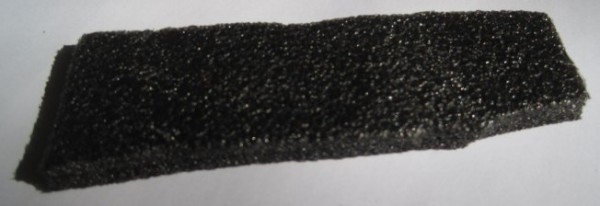
I found this short strip of gray/black foam padding lying around my house among my daughter’s things. She had no recollection where she acquired it and believed she might have another piece somewhere. My MakerBot Cupcake CNC came with a large amount of this kind of padding – but it was pink. I didn’t have any of the pink stuff left over, otherwise I would have used it in place of the cardboard as the insulating material for my DrawBot’s stepper motors.
So – do you know the name of this foam padding? Do you know where I could pick up a few square inches of it to use as a sound/vibration insulator for my DrawBot’s stepper motors?