
I’m 7 for 7 on the Thing-A-Day challenge. I originally didn’t think I’d be able to do this – making something new each day. However, I’m dusting off old things that I haven’t uploaded yet, designing new things in OpenSCAD as tests and proofs of concepts as part of my research for upcoming tutorials, and it now seems very manageable. In fact, I’ve build up a small reserve of things I haven’t had to tap into yet.
Category: MakerBlock
All things MakerBlock: RepRap, MakerBot, Cupcake CNC, open source, and plastic building toys!
Robotics Work Area
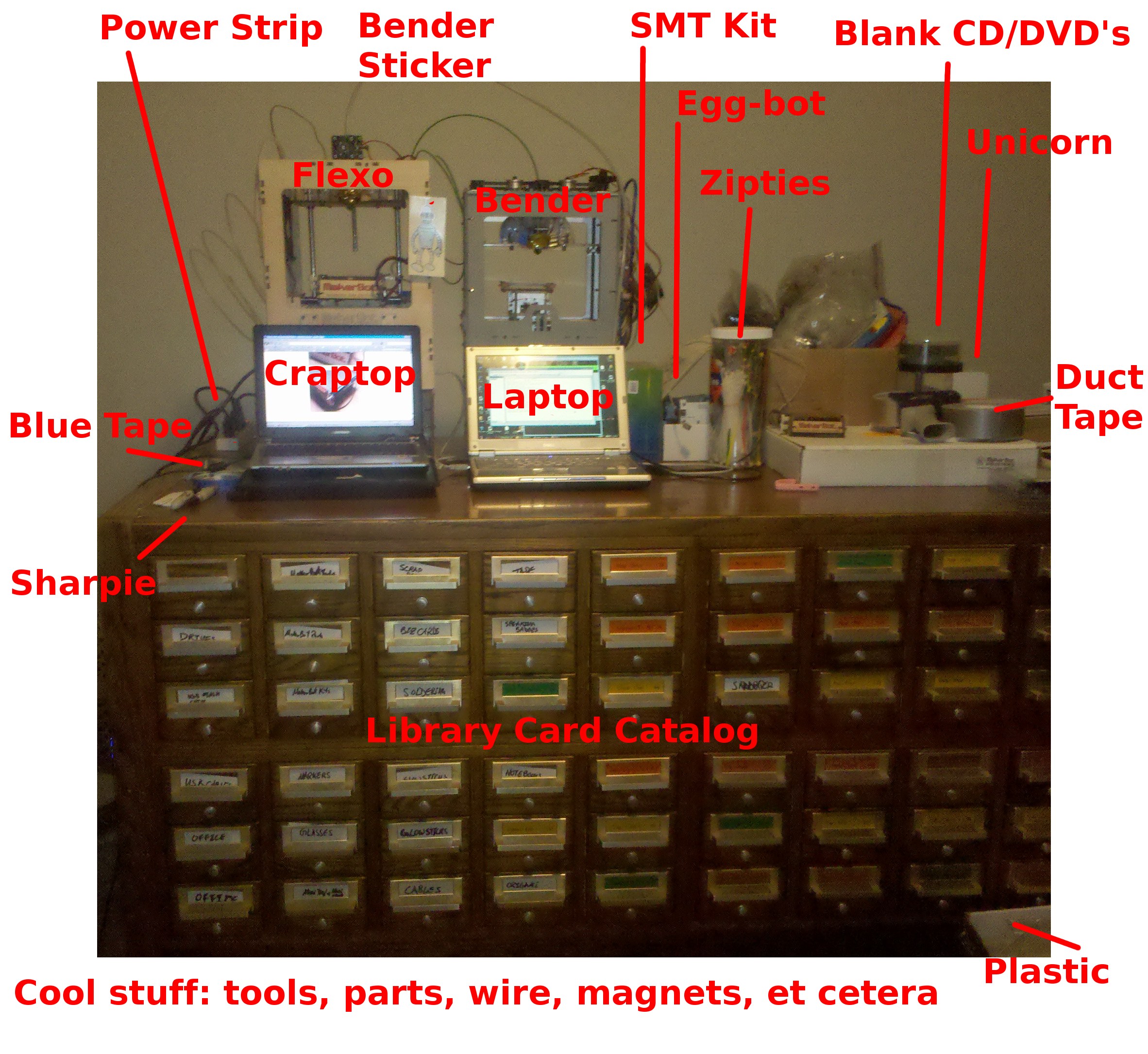
I thought people might be interested in seeing what my robot work area looks like. 1 Part of this last weekend was devoted to organizing the contents of the above library card catalog, putting things in appropriate drawers and labeling them. 2
You can’t really tell from the photo, but each of the Three-Dee printing ‘bots is sitting on a separate filament spindle kit. I’ve got clear MakerBot PLA loaded underneath the Thing-O-Matic (“Flexo”) and black MakerBot ABS loaded under the Cupcake CNC (“Bender”).3 On the surface of the card catalog you can see a pink bracket I printed for my daughter so we can hang a bathroom towel4 at her level. I’ve got a power strip duct taped down to the back left of the card catalog. This has made the entire thing the perfect stand-up computing and soldering station.5
The drawer labels are difficult to read from that image – in large part because of my tragically terrible handwriting. 6 In case you’re interested, the highlights are:
- Two different drawers labeled, “GLOWSTICKS”
- One drawer labeled, “GLASSES”
- One drawer labeled and filled with “NOTEBOOKS”7
- One for “SPEAKER BADGES” of various kinds. Admittedly, most are just from attending different conferences. About a third are from when I was speaking at such conferences.
- One drawer labeled and filled with various kinds of “TAPE”
- One for “ORIGAMI” with paper and half-completed projects
- One for “SANDPAPER” of differing grades
- One drawer for “CABLES” and one for “USB CABLES”
I’m probably using almost 30 drawers, which is only half the front side of this library card catalog. It’s got 60 such drawers on the front and back. 8 910 This monster occupies what was originally called a “living room.” Now we just call it our “robot room.” I was lobbing to change the name to either “The Robotics Lab,” “The Lah-BOHR-Ah-tory,” or the “Laboratory” but the idea did not receive the required 67% of household votes.
The way that I look at it – I could quadruple my robotics hobby and still have enough drawers for it all…
- It’s a bit messy, but worlds better than before I tidied it up. [↩]
- I had posted a description a while back, but this probably explains it all much better. [↩]
- FYI, Flexo has a small magnet installed behind the front panel. That way I can affix a detachable magnetic soul patch. [↩]
- What color do you want, honey? “Pink, PINK!” *sigh* Now, if ONLY we had a robot that could make a pink towel hook for you… “Daddy, stop being silly. Of course we do!” [↩]
- I use a long wooden tray when I solder or assemble something with small fiddly bits. That way if I drop something it falls into the tray. [↩]
- If anything, the JPG compression probably helps the readability. [↩]
- Including my DIY homebrew recycled paper and shopping bag analog notebook [↩]
- The sad part is this thing is SO huge and SO heavy that if we move, we’ll never be able to take it with us. [↩]
- It took an unreal amount of fuel, beer, and pizza to move it to where it is today. [↩]
- If you live in the Bay Area and are interested in it – drop me a line. [↩]
Duet
Pattywac design challenge – $150.00 in prizes
Just a head’s up to anyone who is entering Pattwac’s latest design challenge, the total prize pool is $150.00.
$50.00 from Pattywac and $100 from MakerBot in store credit. In the original post I got the prizes all messed up. :/
I’d rather be making
Part way into all nighter for work, I can’t help but think that I’d rather be making right now.
<Please forgive the rambling post. It’s late and I’m trying desperately to not do actual work.>
I was having a conversation with a friend a few weeks ago about hobbies. A mutual friend of ours has a number of hobbies – going to basketball games, going to the movies, watching professional sports in general. What occurred to me is that my hobbies are actually qualitatively different from his. I’m not saying necessarily better in any way, but certainly more fitting to who I am. These activities – watching professional sports, going to the movies – are consumptive hobbies. They’re about passively consuming an experience.
My hobbies are rather varied. I enjoy blogging1 , programming and WordPress plugin writing2 , origami3 , tinkering with my robots4 , making toys and gadgets, inventing little improvements or hacks for things around the house. It’s been a while, but I even sew a little if the occasion calls for it. This isn’t to say I avoid consumptive activities – I very much enjoy reading and watching certain TV shows.
…
It occurs to me that blogging is both consumptive and productive. Blogging tends to include a lot of commentary on what others are doing. The amazing thing about blogging about 3D printing is that there are SO many amazing people doing SO many amazing things. As Erik is quick to point out, the amount of content generated about 3D printing has been rapidly increasing of late. It really feels like every single day I can tune into the RepRap feed or check out Thingiverse for something truly awesome. I suppose getting to actually print out some of the things other people are in the process of designing also makes it a participatory and even community sort of activity.
…
Almost a month after Botacon I’m still corresponding intermittently with the people I met there. My day job, as I’ve alluded to, has nothing whatsoever to do with tech. 5 So, getting to meet so many people who are also intensely interested in the same things I am was just amazing. I can’t wait for the next MakerFaire and the next Botacon after that.
…
Speaking of meeting people in real life… So the day before Botacon I showed up early at the Botcave and hung out all day long. It was a lot of fun meeting IRL the people I have watched in videos and read about on various blogs. What surprised me, and what continues to surprise me is when I meet people who have read the things I’ve written. Writing/blogging is a solitary and contemplative act for me. Perhaps even therapeutic/cathartic.6 I would say that in person I probably come across as pretty much the same guy as who writes this nonsense. In person I’m probably slightly more gregarious and alternatively self-deprecating and self-aggrandizing. Though, through this blog and the MakerBot blog I tend to overshare a little. 7 Then again, I suppose it’s better left up to the people I met to say whether I came across as the same guy they read about.
Where was I headed with all of this?
Oh! I remember. So, I tend to overshare through writing where I probably wouldn’t in person – perhaps precisely because writing is a contemplative act. The upshot is that when I meet people who have read what I’ve written it gets surreal as they reference the things I’ve written. It’s an odd sensation. It is probably like what an amnesiac feels like. Part way into a conversation you’re talking to someone you kinda know as they reference things that only a friend would know. 8910
…
Wow. Tony Buser just tweeted that he sped up his STL rendering engine by a factor of 100. It’s working too. I brought up a big STL file no problem. I don’t know if you’ve checked it out, but it is THE way to view the best Voltron-themed Leonardo Robot derivative on Thingiverse. Holy cow – one downside – it absolutely CRUSHES my netbook.
Speaking of Voltron… I’m dying to print a new Leonardo Robot an augment it with those Voltron bits. I spent my free time this weekend tinkering with my Thing-O-Matic and using my Cupcake to print off sonic screwdriver parts. Some friends were over with their son a few months ago and he started to play with the Leo Robot. What the heck, here kid, keep it. I’ll make another. ;) The unfortunate upshot is that I’m Voltron-less.
Then again, I keep meaning to come back to that design and refine it. I’d like to install Beco block style connectors into the wrists and shoulders for more range of movement. Ideally, I’d separate out parts that could be printed in different colors. Each of the lions has white parts for the jaws and, depending upon which version you’re looking at, either white or metallic legs and tails. For some reason I seem to feel the white is more fitting. In any case, in the perfect version of this Voltron I’d have the lion bodies printed up in white with the colored bits in a separate file for clipping onto the body parts.
Okay, more nonsense later. :)
- Can you tell? [↩]
- Though, I haven’t had much time for these of late. [↩]
- Again, not something I’ve had time for lately [↩]
- Plural!!! [↩]
- What’s my day job? Oh, nothing much. Just being an international man of mystery. [↩]
- At least, that’s what my therapist tells me. [↩]
- Okay, okay. A lot. [↩]
- Yes, it is true. You, dear reader, are my only friend. [↩]
- Since we’re such good friends and all, can I borrow a five-spot? [↩]
- Who the hell says five-spot any more? I think that’s a bit of left-over lingo from reading Archie comics as a kid. Natch. [↩]
MakerBot Cupcake Ultimate Sale!
If you’ve been waffling on whether to buy a 3D printer, NOW is the time to pull the trigger.
I purchased my Cupcake CNC Deluxe kit for about $1000, shipped. Over the following year I spent about another $500 or so on other color of plastic, replacement parts, and upgrades. You, my friend, are in a much more enviable position. For the next five days MakerBot is selling their Cupcake Ultimate kits for $697. This is all the tools you’ll need (Well, you’d still need some basic things – soldering iron, etc) , all the parts you’ll need, all the upgrades (the automated build platform, the MK5 kickass plastruder, and the relay kit) you’ll need, plus five pounds of plastic to start making ANYTHING you can imagine. Since getting my MK5 plastruder, my Cupcake hasn’t had a single problem that required any replacement parts at all. This kit has been battle tested by literally thousands of people and is totally rock solid.
I’m telling you, my past self is SO jealous of your opportunity!!! Don’t get me wrong, I’m loving my brand new Thing-O-Matic, but this is an insane deal.
Okay, I know someone is going to point out that I blog for MakerBot. That’s totally true, I do. No one asked or suggested I say any of this, I’m not getting any kickbacks, kudos, knickknacks or kangaroos. I’m just a big believer in their products and service.
If you’re in the market for a 3D printer kit and can’t get a Thing-O-Matic, these next few days are exactly what you’ve been waiting for.
Nuance
Some would call it OCD, others attention to detail.
When I originally uploaded the STL file for my Leonardo Voltron I discovered that the figure was facing away from the “camera” in the rendering. Since I had to run the model through Netfabb to fix up some minor details anyhow, I rotated the entire model 180 degrees in Sketchup, re-exported to the STL, and then put it through Netfabb.
That way, when you view the rendered image of the Voltron parts, they’re facing the viewer.
It’s alive!
I’ve got my Thing-O-Matic operational. There were some initial hiccups, but it seems to be working. However, I definitely need to calibrate Skeinforge and the “end.txt” cool down settings for this machine. More on those details over at the MakerBot blog. My initial print, a mini mug1 , turned out reasonably well – but is a little too sparse for actual toasting.
- Natch [↩]
I cheated
Just a little. I completed the body assembly of my Thing-O-Matic, but not the MK5 Plastruder.
I just finished up the plastruder, so I’m going to bolt that in and move on to flashing the firmware.
Working on my Thing-O-Matic…
I’m nearly done.