My eyes! The goggles do nothing!

This slideshow requires JavaScript.

While I’m not much one for impulse buys, I was unable to prevent myself from purchasing the Adafruit Trinket-Powered NeoPixel Goggle Kit Pack.  If you’re on the fence about dropping the $40 for this kit, let me help you out with the pro’s and con’s list I went through before buying my own.

  • Cons
    • I literally have no practical uses for these goggles
    • Other than flashing lights, they don’t actually do anything useful
    • Once assembled, they can’t be used as goggles since (a) the LED’s are too bright to expose to even your closed eyes and (b) if you’re able to close off the glare, you’ll have an incredibly narrow field of vision
    • The kit is $40
  • Pros
    • They are seriously badass animated LED flashy goggles
    • Sourcing all the parts separately would easily cost you $50, which makes this a deal at $40

Kit Review

As I have come to expect from Adafruit, the kit is, in a word fantastic.  The parts are all packed neatly, wrapped, protected, and in a nice black cardboard box.  If you’ve never purchased a kit from Adafruit or checked out one of their tutorials, you’re really missing out.  The tutorials have lots of high quality pictures, helpful step-by-step directions, and little tips along the way that will undoubtedly make you a better hacker.

I got the basic electronics up and running pretty quickly.1 From there it was relatively easy to install them into the goggles.  My wife and daughter, both skeptical when I first told them about the goggles, immediately demanded their own upon seeing mine.

If you end up buying this kit, I would recommend not doing what I did – hotgluing the Trinket and NeoPixel rings in place.  Don’t get me wrong, this is exactly what you need to do to make affix these parts in place for wearing.  The thing is – within 24 hours of completing the project my mind was boiling over with ideas of how to Make it Better.™

Hacking the Goggles

The thing is, the kit is actually capable of doing a whole lot more with very minimal hacking.  Assembled exactly per instructions, the goggles use just one I/O pin on the Trinket, leaving four unused.  The evening after I had assembled the goggles, I dismantled them in order to pull out the Trinket, and soldered additional wires to pins 2, 3, and 4 and spliced three new wires to ground.  After soldering a big 12mm tactile button to each of three sets of wires, I hotglued the buttons above the right lens.  Now I can use these buttons to interact with the goggles in some small ways.

If you’re thinking of modifying your goggles like my own, you’ll need a little more ribbon cable, three big tactile buttons, a battery extension cable, black craft foam, and a hotglue gun.  You don’t really need the extension cable, but it will make keeping the battery inside the goggles and recharging the battery much easier.2

The Adafruit website provides several other ways to extend these goggles.  You can their tutorials to make the goggles sound reactive, controllable by bluetooth, or if you’re using something more powerful than a Trinket you can add an accelerometer.

My Setup

If you’d like to use my animations, you can find my code on GitHub.  I’ve updated the code with several animations:

  1. Larson Scanner.  This is just a single LED lit up, travelling from the left to right and back again.
  2. Wave Scanner.  Two LED’s are lit up, one travelling along the top of the lens and another along the bottom, until it reaches the far side of the goggles, then back again.
  3. Infinity Scanner.  A single LED travels around one lens, then around the other in an infinity pattern.
  4. Spinny Wheels.  Four LED’s on each lens spinning.  This is part of the original sketch from Adafruit.
  5. Sparks.  A single LED on each lens lights up briefly.  This is part of the original sketch from Adafruit.
  6. Sirens.  One red spinny wheel and one blue spinny wheel.
  7. aStrobe.  The right and left lenses flash white on and off.

The buttons have specific uses as well:

  • Button 1 (on pin 2) makes the current animation brighter
  • Button 2 (on pin 3) cycles through the animations
  • Button 3 (on pin 4) makes all LED’s light up bright red (won’t destroy your night vision!)
  • Button 2 and 3 simultaneously make all LED’s light up bright white (destroy everyone’s night vision!)

If you are going to go through the trouble of building this kit, I would highly recommend adding buttons to it3 and leaving the USB port on the Trinket exposed for later re-programming.  There are a few little tricks you can do with just a single button – treating a button click differently than a button press of a certain duration – but I feel that these would probably be more difficult to use than just adding a second button.  With two buttons, there are up to three combinations4 , with three buttons would have up to seven combinations5 , and four buttons seven billion combinations.6

At this point, I’m still experimenting with with ways to make the goggles more useful/awesome.  Perhaps another post is in order?

Default Series Title
  1. It would have been even quicker if my Trinket skillz weren’t so rusty []
  2. Beats the hell out of trying to get your goggles right next to a USB cable. []
  3. Or, at the least soldering wires to the pins for later use []
  4. 1, 2, and 1 + 2 []
  5. 1, 2, 3, 1 + 2, 1 + 3, 2 + 3, 1 + 2 + 3 []
  6. I might have gotten carried away with the math on the last one… []

DIY Shrinky Dinks

Peter DINKlage
Peter DINKlage

The other day I stumbled across a method of making DIY shrinky-dinks.1 Today my daughter and I gave it a shot – they turned out really well!  Here’s how you can make your own:

  1. Cut Plastic Pieces
    1. Locate polystyrene which is easily identifiable by the number 6 in the recycling triangle
    2. You’ll find clear plastic polystyrene is used in plastic salad bar containers, to-go trays, and plastic cookie trays inside boxes of cookies
    3. Shape the plastic as desired with scissors and a hole puncher to round edges and make holes
  2. Decorate Plastic Pieces
    1. Color or draw with permanent markers (Staples usually has some kind of deal on a pack of colored Sharpies)
  3. Bake and Shrink
    1. Preheat oven to 375
    2. Place plastic pieces on a piece of parchment or aluminum foil (colored sides up) on a baking sheet
    3. Put the baking sheet in the oven
    4. You’ll notice the pieces curl or warp significantly, possibly even rolling around.  They will eventually flatten out.
    5. Once all of the pieces are flat, pull the baking sheet out, take the parchment off the baking sheet and let the pieces cool

When they shrunk down, the “hole punch” holes are the perfect size for adding a small metal ring for use in a necklace or charm bracelet.  With a slightly larger hole you could probably make a decent keyring fob.

  1. Credit to Alyssa and Cindy for the ideas []

Priceless Moments with a Crappy Burner Phone

Burner phones can be useful

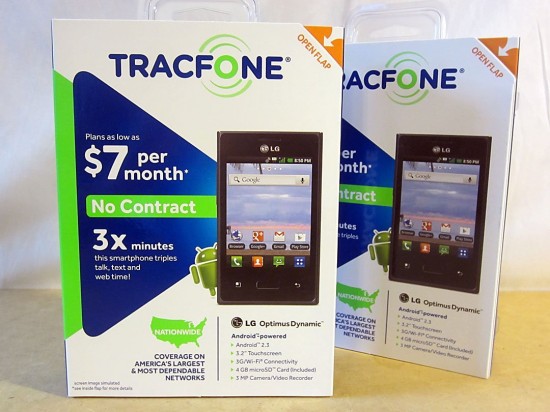
A little while ago I purchased an LG 38c “Optimus Dynamic” Android based touch screen “pay as you go” phone.1 Frankly, this phone has come in WAY more useful than I ever though it would.  Here are a few ways in which I’ve actually used this phone recently:

  • Using a tripod adapter of my own design I set up the camera phone outside and captured a time lapse the full lunar eclipse on 10/8/2014.
  • I used a GPS map to navigate to a location I was unfamiliar with, and back again
  • I captured all of the preparation and dinner for Thanksgiving on a time lapse
  • My wife and I recently had a baby girl – I captured the entire frantic trip to the hospital in a time lapse
  • I had to stay up all night with my daughter a few weeks ago, captured all of that in a time lapse and set it to Daft Punk “Up All Night
  • I use it to take notes, send email, look things up on the web, while I’m using my regular phone for something important like Doctor Who Legacy
  • It’s a cheap movie camera, digital camera, and sound recorder for my eldest daughter
  • I used it to play an hour-long recording of ocean waves for our baby, to help her fall asleep
  • I used it to watch pretty much all of Californication on Netflix
  • An MP3 player
Default Series Title
  1. Photo courtesy of Cianginty []

The best apps for your crappy burner phone

Crappy phone, great apps

I recently purchased a cheap pay-as-you-go Android smartphone with no intention to ever use the phone feature.  After removing several non-essential apps from the phone, I installed the following useful (and free!) apps:

  • UTILITY
    • Plane Mode Tweaker by Chislon Chow
      • This app allows you to let your WiFi through the phone’s “Airplane Mode.”  All cell phones, even those that have never been registered with any phone carrier, will periodically communicate with nearby cell towers.  Using this app, I can turn off that ability – while still leaving the WiFi untouched.  By turning off just the cell radio in the phone, I was able to extend the battery life significantly.
    • Tina Time-Lapse by B.nana Technology
      • This is a really great free app with lots of settings.  If you buy the paid app, it seems to have more settings and abilities.
    • Voice Recorder by Mamoru Tokashiki
      • I’ve been using this useful app for years to make notes to myself.  ((And once to record the sounds of a tiger.))1
    •  VNC Viewer by RealVNCLimited
      • Control any other computer running a VNC server.
    • GPS Navigation
  • ENTERTAINMENT
    • Chess Time – Muliplayer Chess by Haptic Apps LLC
      • Great app if you enjoy the occasional chess game.  I use it to play against friends2 all the time.
    • IMDB Movies & TV
      • Sometimes you just have to know the name of the actress who’s playing the barrista.
    • Shazam
      • Sometimes you just have to know the name of a song playing in a movie or TV show.
    •  Netflix
      • It is downright ridiculous to me that I can buy a $20 appliance for watching movies over a wireless connection.

Also, once you install apps on the phone, you’ll want to go to the app manager and move them to “internal memory.”  Although it sounds the phone is asking you if you want to move all the apps to the very limited 1GB of the phone’s internal memory, what you’re really doing is moving the apps to the “internal memory” of the 4GB microSD card.

Default Series Title
  1. True story. []
  2. And enemies []

Why You Should Buy a Crappy Burner Phone

LG Dynamic Optimus (LG 38c)

I recently purchased a cheap “pay-as-you-go” Android smartphone after reading about it on Slashdot.  The phone in question is an “LG 38c” being sold under the name, “LG Optimus Dynamic” with triple “Tracphone” minutes which you can pick up from Amazon for $19.99.

Before you rush out and get one, the processor is underpowered, the screen is small, it only comes with a 4GB microSD card and very limited internal memory, the viewing angle is relatively narrow, the touchscreen is a flexible plastic rather than sturdy glass, and runs an older version of the Android operating system that can’t handle many apps.12

That said, you would be hard pressed to be able to build or buy a device for $20 that is as capable as this little phone.  The phone can use WiFi, can run the Netflix movie viewing app, be used as a web browser, alarm clock, MP3 player, digital camera, digital video recorder, GPS navigator, send and receive email (over WiFi), and run many useful apps available from the Google Play store.  Also, you may not be aware of this or not, but every single cell phone out there – even those without any cell phone plan – is capable of dialing 9-1-1.  ((Obviously, this phone can be as cheap as it is because the phone company is subsidizing the cost, hoping you make it up by buying phone minutes.  Although I’m basically breaking this business model on a small scale, I just don’t seem to feel that guilty about it.))

Default Series Title
  1. One amusing downside to buying a crappy burner phone is that your wife will look at you like you’re crazy.  She’s not going to think you’re a super spy or a drug dealer or anything cool like that. []
  2. Right, Honey?! []

Maker Faire Checklist

Maker Faire Checklist

Between taking most of “Maker Faire” week off work and getting ready1 for MakerCon and Maker Faire, May was a hectic month. I remembered pretty much everything I needed for a successful2 – except “maker cards” and a metric ruler.  With a few additional tweaks, I’m sure it can be even better next year.

In case you’ve never set up a booth at Maker Faire, you get an area with several folding chairs, a few long folding tables, and a chain link fence on at least one side of you.34 To have an interesting booth, you’ll want something to put over your table and on the chain link fence.

Since my entire booth was basically a wooden box that unpacked into a robot that made decorations for my booth, set up was rather easy.

  • Attending the Fair
    • Cash5
    • A MakerBingo card
    • A list of things and people you want to see6
    • Backpack7
    • Food or snacks8
    • Phone charger9
    • Warm weather clothes – shorts, t-shirt
    • Warmer clothes, stowed in backpack, for when it gets dark and cooler10
    • Laptop, power cable11
  • Booth Setup
    • One large table covering per table12
    • One large display board to explain your project ((Like the kind for science fairs))
    • One booklet of information13
    • Caution tape14
    • Zip ties
    • Hot glue, glue sticks
    • Some kind of swag15
    • Some way to make your project interactive16
  • Booth Interior
    • Cooler, water, ice17
    • Paper bags or swag bags18
  • Feedback
    • Suggestion box, 3×5 index cards, pens19
    • Notepad for email list signup
    • LOTS of maker/business cards
    • Update the website before Maker Faire!20
  • Robot
    • Hardware21
    • 3mm hex wrench22
    • Metric ruler23
    • Paper ((One $5 roll is good enough to run a PlotterBot around the clock all entire weekend))
    • Pens and markers24
    • Blue painter’s tape and masking tape
    • Extra fishing line25
  1. Photo courtesy of Daniel Kulinski []
  2. Editor’s choice blue ribbon! []
  3. I heard an amusing anecdote from someone at Make who said they put a lot of time and energy into figuring out a good spot for all the makers.  Apparently they were a little concerned about having three drawing / art style robots next to one another!  I had a great time hanging out near PicassoBot and PancakeBot! []
  4. My daughter later pointed out there were three robots, in a row, all with a “P” in the start of their name []
  5. As a Maker, I could eat at the Maker Lounge, but the credit card machine was intermittent []
  6. This could be a whole topic in itself.  Two days is not enough to catch all the talks from just one stage.  With multiple stages, multiple demonstrations, mini-concerts all happening at the same time  []
  7. Or not.  There were several booths giving away these stringy sack kind of backpacks []
  8. Maker Faire is big and there’s a lot to see.  Although there are a lot of food options, you don’t necessarily want to drop what you’re doing just to go find food []
  9. Ideally, a portable one []
  10. Just a hoodie should be enough []
  11. These were necessary for my particular robot, but may not be for you and definitely not if you’re just attending []
  12. $15 each at KMart []
  13. Printed with clear plastic cover, spiral bound, about $7 []
  14. About $3 for a huge roll – perfect for keeping kids from rushing into your booth []
  15. Business cards, stickers, t-shirts, to any other kinds of trinkets out there []
  16. These are really the most fun kinds of exhibits/booths/projects at Maker Faire []
  17. It gets super hot and stuffy if you’re indoors, so water is key []
  18. To stow extra clothing and supplies []
  19. Pens can be donated from the hotel []
  20. Ideally, with a link to the mailing list and/or squeeze page []
  21. Bolts, washers, wingnuts []
  22. The entire robot can be assembled or disassembled with a single 3mm hex wrench []
  23. 1 meter stick or yard stick with metric markings []
  24. A whole new pack []
  25. This has never broken or tangled on me, but it’s not a bad idea to bring extra []

On Designing in the Open

Designing in the Open

I like designing in the open.  This is not really the same thing as “open source” design, although I love that too.  An open source design means that you’re sharing your source files, ideally with lots of comments to explain what you’re doing and why.  I think of “designing in the open” as talking about1 all the experiments, design ideals, design choices, mistakes, dead ends, and breakthroughs that come along with working on an open source design.

These are really parallel and complimentary tracks.  If you’re designing in the open, anybody can come along, read through your notes, ideas that you’ve considered but not really explored, and build their own project based off your thoughts.  Open source projects allow anyone to come along, build your exact project, and make changes as they see fit.  The two together however, allow the next person to use your source and stand on your shoulders, to learn from all your mistakes, and truly grok the design.

Two of my projects “designed in the open” that I’ve done the most work on was a large wall hanging drawing robot2 and a tiny drawing robot.  At the time of this writing, I’ve got about 83 posts on the large drawing robot (including literally thousands of words about just about every aspect of the design of each plastic part) and 23 posts on the small drawing robot, exploring all the design ideas that didn’t pan out, different approaches other people used, and what did and didn’t work for me, and why.

When it came to building my own big drawing robot, Sandy Noble’s website and forums were absolutely invaluable.  Using these resources and with patient guidance and help from Sandy himself, I was able to build my own robot, making variations informed by the experiences of others.

Designing in the open is more than about just documentation.  Documentation tends to be more about explaining why something is the way it is and now not to go wrong.  It doesn’t tell people about all the mistakes and tragedies that went into the creation of the thing in first place.

So, why am I droning on about blogging about mistakes and dead ends?  I’m embarking on a new project where there has been some truly incredible work so far.  As I look at the designs, it is difficult for me to see what aspects of the designs are absolutely critical, which parts are vestigial remnants of earlier designs, and what parts are merely cosmetic.  When it came to working on my own big drawing robot, I tackled a similar problem3 by creating exhaustive lists of pretty much every variation I could find, examining the differences and similarities, and pondering/brainstorming about why different decisions were made.

Part of the problem with this new project is that so much of the content is in Google Plus or on Thingiverse, both of which are incredibly difficult to sift through for information.  Thingiverse is great for sharing design files, works in progress, and sharing instructions.  However, the comment system handled by Disqus is very finicky and doesn’t allow linking to specific comments.  Google Plus is a fair system for facilitating group discussions and comments, but it requires an invite, doesn’t allow “reshares,” and is pretty much impossible to link to for reference.

All that being said, while a blog is an excellent way for a very small number of people to share their work, it’s kind of terrible for larger collaborative discussions.  Although I haven’t tried collaborative work through a wiki, that might be a reasonable way forward.  While I don’t know the answer to the community conundrum, I know it is not Facebook or Google Plus.  Overall, the best system I’ve seen so far may be Sandy’s blog + forums.

In any case, to the extent you have an open source project you’re working on, please consider how your choice in community platform can facilitate designing in the open so that viewing and searching don’t require invitations/registrations, comments don’t require registrations or log ins, and easy linking to prior discussions and comments.

  1. Probably blogging about – but forums work well too []
  2. Based on Sandy Noble’s excellent Polargraph []
  3. Namely, lots of excellent designs, lots of documentation – but little information about why certain decisions were made []

Fix a Fitbit Ultra Flashing Display

Fitbit Ultra
Fitbit Ultra

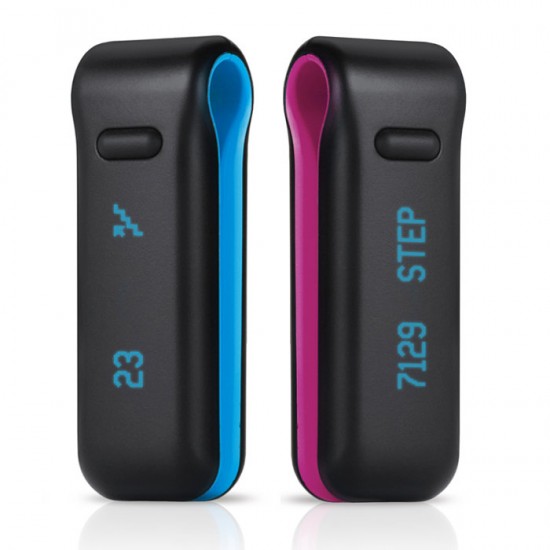
If you’re looking for a way to fix the flickering or flashing LCD display on your Fitbit Ultra, I’ve got a few tips to help you on your way.  This post is basically broken into three parts – how to revive a Fitbit Ultra, my experiences with Fitbit’s support, and an update about me.

How to Fix the Fitbit Ultra LCD Display Flashing “FITBIT 4.14”

I bought my Fitbit Ultra about 15 months ago and misplaced it about six months ago, only finding it again on Wednesday.  The device was entirely unresponsive, so I plugged it into the USB charging base overnight.  The next morning it would flicker and flash the LCD display saying only “FITBIT 4.14”.  Here’s what I did:

  • Found Fitbit Ultra, plugged into USB base overnight.  The result was the LCD display flickered and flashed only “FITBIT 4.14”.
  • Unplugged Fitbit, pressed the button, and discovered the only thing it would do is flicker “FITBIT 4.14”.
  • I plugged it back into the USB base, pressed the button, and it still flickered the same message.
  • With the Fitbit connected to the USB base, I turned the base upside down and inserted the end of a paperclip into the recessed reset button. The Fitbit still flickered the same message.
  • I let the Fitbit remain connected to the USB base for another entire day.  At the end of that day I discovered that I could cycle through the display options – but the time on the Fitbit was entirely wrong.
  • I re-downloaded the Fitbit Ultra software, re-installed it, re-logged into the software, and let it sync with the Fitbit.  After a few minutes of this, the Fitbit was back to life!

Experiences with Fitbit Support

In trying to revive my Fitbit, the first thing I tried was searching the Fitbit website and support forums, without success.  After that I reached out to Fitbit’s support team explaining I tried the basics.1 The response from Fitbit’s support was that their records reflected my Fitbit was out of warranty and that they were making a “a one-time offer, for one (1) Fitbit One Tracker” for $49.  I found this response incredibly disappointing.  I would have appreciated something, even a token effort at helping me to fix my Fitbit instead of an upsale.  I realize they’ve got a business to run, but offering “one-time offers” for upsales it not a suitable substitute for actual product support.  While I would assume a warranty would cover a product’s functions, I wouldn’t have expected that they would abandon support after the warranty period.

Personal Update

A little over a year ago I bought a Fitbit Ultra to help me track steps, activity, etc towards my ambition to lose weight and be more active.  While I tried to introduce more activity and made a point of checking out the steps I had logged, using an online food diary called FitDay.com was easily the most helpful thing for me.

Last year was very successful, overall.  From 222.5 pounds in January 2013 I dropped to a low of 193.0 in June.  Since that time I’ve slowly gained a some weight – back to 203.5 now.  The most important things I did to lose weight were to eat something for breakfast, walk a little more, and eat less.  I tried to cut out or cut back on potatoes, bread, pasta, and rice and increase eggs, cheese, yogurt, protein, nuts, fruits, vegetables, and drink more water.

In the months since June, I haven’t been walking as much, have been eating more delicious pizza, sandwiches, and burritos.  I want to feel a little remorseful about this, but I just can’t.  :)

  1. Restart, reinstall, reboot, lather, rinse, repeat, etc, etc, etc []

How NOT to Serve Chicken

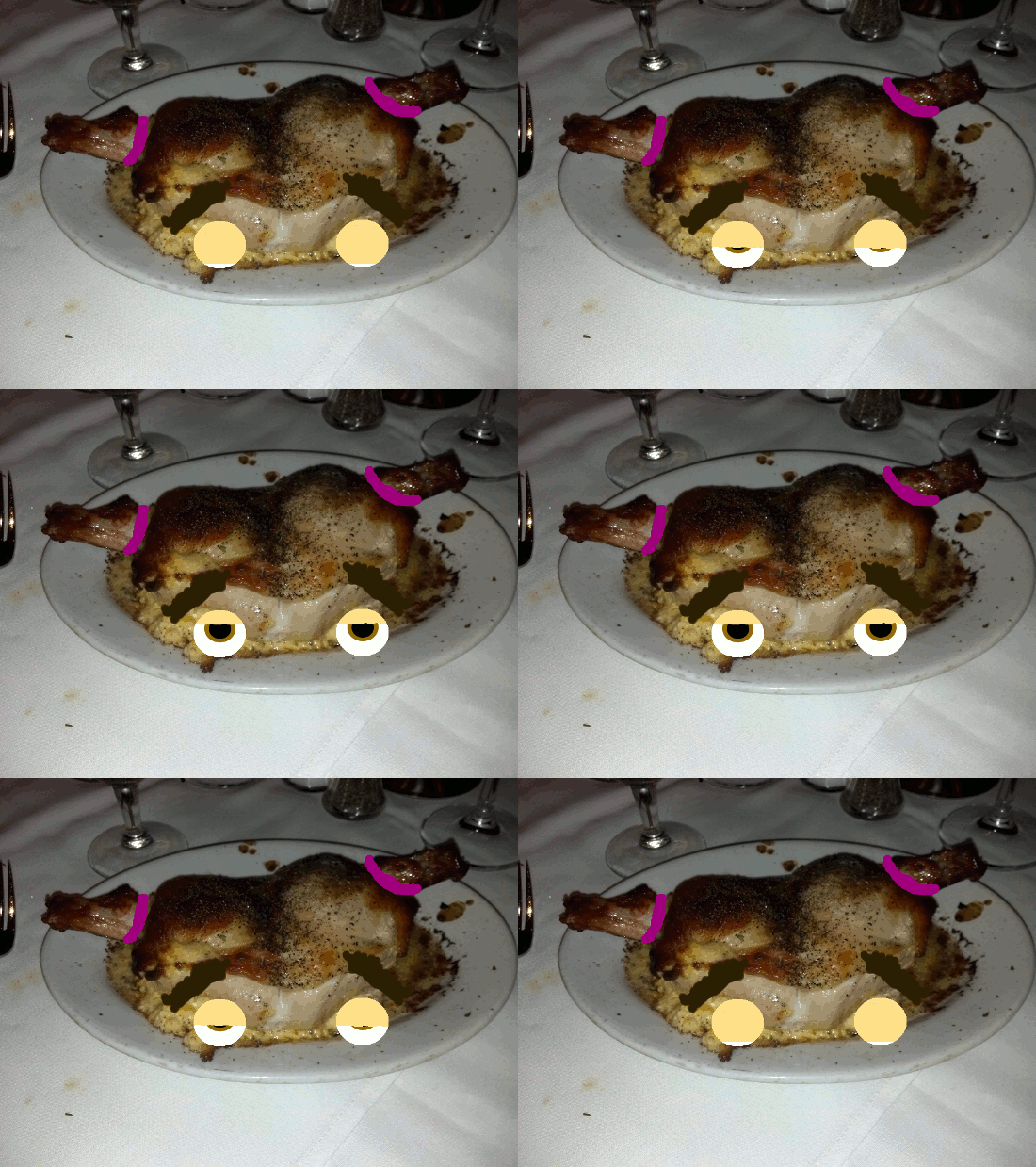
This is not how chicken should be served - shaped to look like a human child
This is not how chicken should be served – shaped to look like a human child

This last year the office Christmas party was held at Ruth’s Chris where I was served an unappetizing and inedible dish.1

Setting aside the profound service issues and the presentation, the dish was just not edible.  Now, I like cheese – I even like a lot of cheese.  But, there was so much cheese inside and underneath this piece of chicken that I was just not able to scrape enough of it off to be able to eat it without coating my entire mouth and tongue.  I only managed to eat a few bites before having to give up entirely.

If the meal itself was inedible, the presentation was actually worse.  The dish looks like a little girl with pigtails was scalped, had her head was stuffed with cheese, and baked until golden brown.  Below is an animated GIF of what the dish looked like to me.

STOP LOOKING AT ME!
STOP LOOKING AT ME!
  1. Can you tell I’m overcompensating for not having actually posted last month? []

This Post Is A Fraud

Believe the lie
Believe the lie

I’ve been blogging on this site since 11/2009 – almost 4-1/2 years.1 In that time I’ve published just over 1,000 posts23 and I’ve got more than 200 just sitting around in draft form.  Those are posts with partially finished ideas – possibly just a title or a link or a sentence.  Others are almost entirely done, waiting for a small spark of creativity or maybe just an interesting photograph.

February 2014 was the first month in nearly 4-1/2 months that this site went without a new post.  I am a little bummed about that.  There were reasons – but reasons for not having done something are just excuses.  Thus, instead of giving you an excuse, I will offer up this post as a bald-faced lie.  It was “published” on 2/28/2014 at 11:59pm.

Now that my lie is out of the way…  I wanted to add a little bit about the post I have/going to publish about working with paper mache.  In January and February my daughter was working on a project for her science fair – which involved “The Brain and the Sense of Touch.”  As part of the display, she created a paper mache model of the brain so she could point to the different regions and explain what each does.  She says her favorite part was applying the strips of paper and then painting it.  She enjoyed applying the gluey bits of paper and actually making something.  She also enjoyed the painting because she loves painting and colors and being artistic.

  1. Photo courtesy of Chris []
  2. 1,007 including this one []
  3. I like to think that most of the posts made some sort of sense at the time. []