
Tap Light Focus Timer System

I’ve been procrastineering on a “sticky note timer” which would incorporate an e-ink display, be portable, updatable via WiFi, show me what I should be working on, and flash lights at me to give me a sense of movement / time passing / and urgency.  Sometimes I use the word “procrastineering” to refer to when I start to spiral on a project and end up in analysis paralysis.  But, I think it is more appropriately used when I’m doing a deep dive on a project when I really have something much more important / urgent I should be working on.

A long time ago I added a few components to an off the shelf dollar store tap light and turned it into a game buzzer.  While the sticky note timer project was marinating  / incubating1 in the back of my brain, I realized that maybe I don’t need or even want something that high-tech.  Maybe what I need is something dead simple?  As cool as the sticky note timer project is – and it really is neat – there’s a lot of pieces to the puzzle and a fair bit of maintenance that goes along with it once its finished.  You have to connect to it, upload a list, set up timers, etc.

I finally decided on something not so easily adjustable, but still flexible in it’s simplicity.  Rather than making the setup (adding / updating / uploading lists to a timer) something I have to do in order to start the timer, what if I made it part of the timing?

First, let’s look at what the setup.  A dollar store tap light which includes a lot of handy parts – a battery holder, a push button switch, several springs, and a simple and at attractive enclosure.

This slideshow requires JavaScript.

On the far left is a basic off the shelf dollar store tap light.  Next to it are two others I had previously modified to work as game / timer buzzers2  The last picture is the wiring diagram, except that I wired the ATTiny chip to the positive wire coming from the button switch.  Whenever I hit the button, it will toggle the circuit on and off.

Using some parts from my electronics bin3, I cobbled together a prototype on a breadboard that would do the following when the button was hit:

  • Turn orange for 1 minute and beep 3 times in the last 3 seconds
  • Beep once more and turn green for 12 minutes, then fade from yellow through orange over the last 3 minutes
  • Flash red and beep three times after 15 minutes had lapsed (12 minutes of green and 3 minutes of color fading)
  • Turn off, go to a low power mode, and then wake up long enough to flash blue every 8 seconds
  • After 5 minutes, it would flash green and beep twice
  • Then keep doing this 8 second blue flash and green light plus beep every 5 minutes
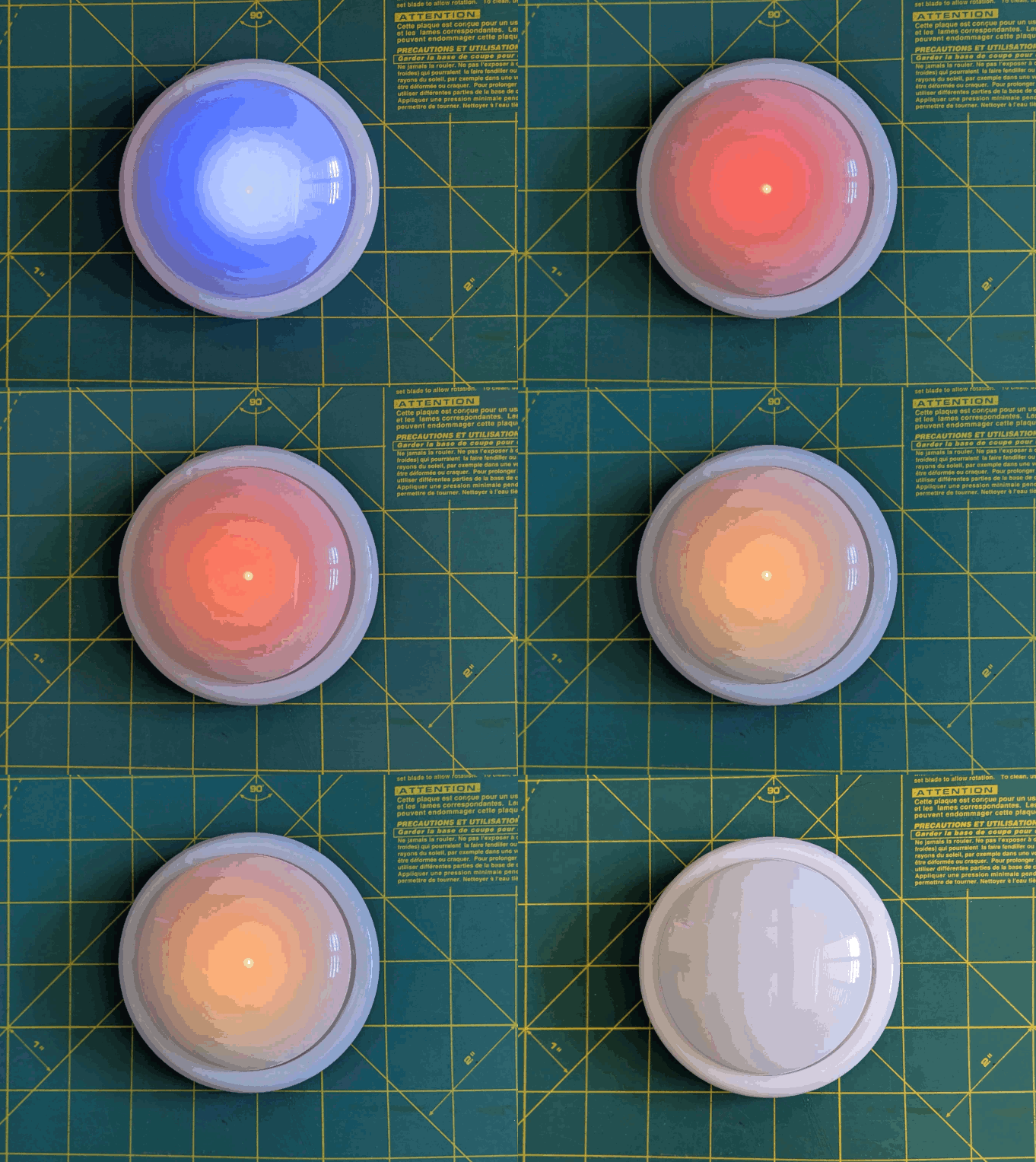
Animation of LED timer button

You’re probably wondering – what’s with all these timers and lights and beeps?  Here’s how I use them:

  • Place and slap the button to get going
    • I put my phone on my desk and the timer right on top of my phone.  It’s a big 4″ diameter timer and covers the phone pretty well.  I can’t pick up my phone without seeing this timer ticking down.  This is a huge difference between a phone app and a physical thing standing between me and my phone.  There are some web browser based apps – but these don’t really work for me.  Either I have to keep that window open and on top or … I’ll forget it exists.  This timer is right there, front and center, on my desk and lit up no matter where my desktop might take me.
    • Plus, it’s actually a little therapeutic to slap the tap light.  Pushbutton switches like this are built to take a bit of abuse and the physical action of hitting the light is a lot of fun.
  • Orange for 1 minute
    • This is the replacement for the “maintain / update a list.”  Instead of having to fuss with a list, I’ve dumped myself directly into work.  I’m suddenly racing the clock for 60 seconds to write all the things I want to try and accomplish in the next 15 minutes.  Maybe it’s a few emails, make some phone calls, or write / edit a document.  After 57 seconds, the buzzer will beep three times to let me know that the 15 minute timer is about to start.
    • Or, if you already have a particular task to work on, you could use this time to follow a process like Steven Kotler’s suggestions on tactical transitions to a a flow state4.  His three step process is:
      • Anchor your body
        • Practice box breathing.5  You could box breathe 3 times in one minute and have a few second left over to psych yourself up.
      • Focus your mind
        • Write down one clear goal.
      • Trigger your ritual
        • Recite a mantra, perform a gesture, start a “work” playlist
  • Green for 15 minutes
    • It’s go time!  Whatever I wrote down, now I’m in a race to work on those things – and those things only.  I can’t let new emails, calls, etc, distract me – that buzzer is going off in 15 minutes.  As the timer closes in on 15 minutes, with just 3 minutes to go, it turns yellow and fades to orange.  If I look up / down and see this, I know I’m in the home stretch and I’ve got to start moving fast to wrap things up.
  • Red alert!
    • Once the 15 minutes is up the light flashes red and beeps to let me know I’m off the hook.  Now, if I’ve already hit peak productivity, I could keep going.  If I got sidetracked, it’s an alert for me to restart the timer and get back to it.
  • Blue flashes, 5 minute green flash and beeps
    • These blue flashes happen once every 8 seconds6 just to keep the timer present in my vision so it doesn’t just appear into the mess on my desk.
    • If I finished out the 15 minute block of work time and I don’t stop the timer, the 5 minute timer is my reminder to return to my desk, reset the timer, and get going again.
    • If I ended up working past my 15 minute block of work time, the 5 minute beeps still give me a sense of how much time has passed.7
    • Importantly – if I get distracted by a sidequest, one of the beeps every 5 minutes is bound to catch my attention and remind me I’m supposed to restart the timer and get back to work.

So… does it work?  For me, yes!  Here’s why:

  • The hardest part of getting started is getting started.  My tendency is to want to collect all the stuff I’d need, get real comfy, make a list, look up some documents, etc.  This system short circuits all that.  I just need to be able to slap the big button sitting on top of my phone.  If I can manage that, I get 60 seconds to collect myself and then it’s time to rock and roll.  That’s enough time to take some deep breaths, start a playlist, or just sit quietly before I get started.
  • It covers up my biggest distraction.  Unlike an app on the phone or my desktop computer, I can literally cover up my phone with this big damn button.  I won’t see any notifications and if I want to pick up my phone, I have to actually look at and ouch the button – which is itself a reminder to get back to work.
  • It plays into a sense of play, urgency, and my own overdeveloped sense of competitiveness.  I enjoy hitting the timer to turn it on – and I want to beat that 15 minute timer.
  • The 5 minute timer acts like a built in break timer.  If I can get through 15 minutes of work, I can goof off, write a blog post, and without doing anything else that 5 minute timer can bring me back.
  • It includes a “failsafe” to bring me back to the timer if I get distracted by a sidequest.  If I miss the 15 minute timer, there’s another 5 minute timer around the corner.  Even between timers, there’s an intermittent flash of blue light to grab my attention.

The only meaningful “downside” to this timer button for me is there’s no pause button.  However, this isn’t exactly bad.  It helps me really hone in on what’s important and what’s interesting.  If a family member asks me for something or a call comes in, I just need to weigh the benefit of addressing the intrusion against having to restart the timer.  And realistically, if I pause the timer, I’m going to need some time to drop back into “flow” anyhow.

Sticky Note Timer
  1. Ah, just what I need! A new project!
  2. Sticky Note Timer, parts arrived!
  3. Seeed Studio XIAO ESP32C3 and a small sticky note display
  4. Brainstorming More E-Ink Stuff
  5. Smol Fonts for E-Ink Displays
  6. Tap Light Focus Timer System
  1. Fermenting?  Festering? []
  2. The older ones would flash orange a few times to alert you the game was going to start, turn green, fade from yellow to red, then flash red and buzz after 15 seconds. []
  3. I used an ATTiny45 because I had one, but it’s not much more expensive to use an Adafruit Trinket, a buzzer, a RGB/neopixel LED, and some wire.  In a subsequent version, I also used a small prototyping board like the Adafruit Perma Proto Boards []
  4. It’s the second slide []
  5. TLDR:  Breathe in slowly through the nose for 4 seconds, hold for 4 seconds, breathe out slowly through the mouth for 4 seconds, hold for 4 seconds, repeat []
  6. Because that’s the longest the little microchip can do between “deep sleep” to conserve battery life []
  7. I may adjust the program so the first five minutes is 1 beep, second five minutes is two beeps, etc []

Prusa Lack Stack, LED Lighting, CircuitPython Tweaks

Much like those recipes on the internet where the author tells you their life story or inspiration, I’ve got a lot to share before I get to the punchline of this blog post (a bunch of CircuitPython tweaks).  Edit:  On second thought:

  • Keep the lines of code <250
  • Try using mpy-cross.exe to compress the *.py to a *.mpy file

This is a bit of a winding road, so buckle up.

Admission time – I bought a Prusa1 about three years ago, but never powered it on until about a month ago.  It was just classic analysis paralysis / procrastineering.  I wanted to set up the Prusa Lack enclosure – but most of the parts couldn’t be printed on my MonoPrice Mini Delta, which meant I had to set up the Prusa first and find a place to set it up.  But, I also wanted to install the Pi Zero W upgrade so I could connect to it wirelessly – but there was a Pi shortage and it was hard to find the little headers too.  Plus, that also meant printing a new plate to go over where the Pi Zero was installed, a plate that I could only print on the Prusa, but I didn’t have a place to set it up…

ANYHOW, we’ve since moved, I set up the Prusa (without the Pi Zero installed yet), printed a Prusa Lack stack connector to house/organize my printers.  Unlike the official version, I didn’t have to drill any pilot holes or screw anything into the legs of the Lack tables.

Once the Lack tables were put together, I set about putting in some addressable LEDs off Amazon. I found a strip that had the voltage (5V for USB power), density (60 LED’s per meter), and the length (5 meters) I wanted at a pretty good price <$14, shipped.  I did find one LED with a badly soldered SMD component which caused a problem, but I cut the strip to either side of the it, then soldered it back together.  Faster and less wasteful than a return at the cost of a single pixel and bit of solder.

The Lack stack is three tables tall, keeps extra filament under the bottom of the first table, my trusty Brother laser printer on top of the first table, my trusty Monoprice Mini Delta (Roberto) on top of the second table, and the Prusa (as yet unnamed Futurama robot reference… Crushinator?) on top.  Since I don’t need to illuminate the laser printer, I didn’t run any LED’s above it.  I did run a bunch of LED’s around the bottom of the third printer…  this is difficult to explain, so I should just show a picture.

When Adafruit launched their QtPy board about four years ago, I picked up several of them.  I found CircuitPython was a million times easier for me to code than Adafruit, not least of which because it meant I didn’t have to compile, upload, then run – I could just hit “save” in Mu and see whether the code worked.  I also started buying their 2MB flash chips solder onto the backs of the QtPy’s to a ton of extra space.  Whenever I put a QtPy into a project, I would just buy another one (or two) to replace them.  There’s one in my Cloud-E robot and my wife’s octopus robot.  Now, there’s one powering the LED’s in my Lack Stack too.

I soldered headers and the 2MB chip into one of the QtPy’s, which now basically lives in a breadboard so I can experiment with it before I commit those changes to a final project.  After I got some decent code to animate the 300 or so pixels, I soldered an LED connector directly into a brand new QtPy and uploaded the code – and it worked!

Or, so I thought.  The code ran – which is good.  But, it ran slowly, really slowly – which was bad.  The extra flash memory shouldn’t have impacted the little MCU’s processor or the onboard RAM – just given it more space to store files.  The only other difference I could think of was that the QtPy + SOIC chip required a different bootloader from the stock QtPy bootloader to recognize the chip.  I tried flashing the alternate “Haxpress” bootloader to the new QtPy, but that didn’t help either.  Having exhausted my limited abilities, I turned to the Adafruit discord.

I’ll save you from my blind thrashing about and cut to the chase:

  • Two very kind people, Neradoc and anecdata, figured out the reason the unmodified QtPy was running slower was because the QtPy + 2MB chip running Haxpress “puts the CIRCUITPY drive onto the flash chip, freeing a lot of space in the internal flash to put more things.”
    • This bit of code shows how to test how quickly the QtPy was able to update the LED strip.
      • from supervisor import ticks_ms
      • t0 = ticks_ms()
      • pixels.fill(0xFF0000)
      • t1 = ticks_ms()
      • print(t1 – t0, “ms”)
    • It turns out the stock QtPy needed 192ms to update 300 LED’s.  This doesn’t seem like a lot, until you realize that’s 1/5th of a second, or 5 frames a second.  For animation to appear fluid, you need at least 24 frames per second.  If you watched a cartoon at 5 frames per second, it would look incredibly choppy.
    • The Haxpress QtPy with the 2MB chip could update 300 LED’s at just 2ms or 500 frames per second.  This was more than enough for an incredibly fluid looking animation.
    • Solution 1:  Just solder in my last 2MB chip.  Adafruit has been out of these chips for several months now.  My guess is they’re going to come out with a new version of the QtPy which has a lot more space on board.
      • Even so, I’ve got several QtPy’s and they could all use the speed/space boost.  I’m not great at reading/interpreting a component’s data sheet, but using the one on Adafruit, it looks like these on Digikey would be a good match.
  • The second item was a kept running into a “memory allocation” error while writing animations for these LED’s.  This seemed pretty strange since just adding a single very innocuous line of code could send the QtPy into “memory allocation” errors.
    • Then I remembered that there’s a limit of about 250 lines of code.  Just removing vestigial code and removing some comments helped tremendously.
    • The next thing that I could do would be to compress some of the animations from python (*.py) code into *.mpy files which use less memory.  I found a copy of the necessary compression/compiler program on my computer (mpy-cross.exe), but it appeared to be out of date.  I didn’t save the location where I found the file, so I had to search for it all over again.  Only after giving up and moving on to search for “how many lines of code for circuitpython on a microcontroller” did I find the location again by accident..  Adafruit, of course.  :)
    • I’m pretty confident I will need to find the link to the latest mpy-cross.exe again in the future.  On that day, when I google for a solution I’ve already solved, I hope this post is the first result.  :)

The animations for the Lack table are coming along.  I’ve got a nice “pulse” going, a rainbow pattern, color chases, color wipes, and a “matrix rain” / sparkle effect that mostly works.

Animated GIF

I started this blog post roughly 7 months ago2 by the time I finally hit publish.  After all that fuss, ended up switching from CircuitPython (which I find easy to read, write, maintain, update) to Arduino because it was able to hold more code and run more animations.  Besides the pulse animations, rainbow patterns, color chases, color wipes, and a matrix rain, it’s also got this halo animation, some Nyan cat inspired chases, and plays the animations at a lower brightness for 12 hours a day (which is intended to be less harsh at night).  I could probably add a light sensor, but I don’t really want to take everything apart to add one component.

  1. The i3 MK3S+! []
  2. January 7, 2025 []

[2025] Google Pixel Boot Loop Fixes

In the 7 years since I wrote a blog post about rescuing my Google Pixel from a boot loop people have started reaching out to me desperately looking for a way to fix their phones.  This particularly horrible glitch happens at the worst time – when your phone storage is completely full of pictures and videos.  In my case, we were on vacation and not near wifi when I’d happened to fill up the phone storage and it got stuck in a boot loop.1

Google Support was adamant there was no way to recover my data and my options were to factory wipe the phone myself or send it to them so they could do it.  Of the resources found back in 2018, almost nothing survived Google’s march of “progress” and destruction of their own older resources.  In this case the links to Google’s own Pixel support forums and links to resources no longer work – and there are no working Archive.org / Way Back Machine links.

Anyhow, if you’re stuck in the same situation as I was – without the resources and links I had back then, perhaps if you dig around you can still find a way?

“If you have a problem, if no one else can help, and if you can find them, maybe you can…”

Before you get started – a warning.  I don’t currently have this problem and am trying to piece together how I fixed my problem 7 years ago on an older phone, using current guides that are no longer accessible.  I haven’t verified any of these links and resources, I’m just some rando on the internet who is trying to help you out because some other internet randos helped me out a long time ago.  Google has a nasty habit of deleting their own resources and shuffling things around.  I don’t know the first thing about installing new operating systems on phones and following any of these links or suggestions might permanently damage your systems.  But, as I mentioned before…  I tried this because Google Support was beyond unhelpful and I was completely out of options.

You’ve been warned

The basic framework for the fix was:

  1. Get the phone to “Recovery Mode” so at least isn’t not boot looping, overheating, and chewing up your battery.
    1. If you have an unlocked phone, or a locked phone from Google which you could theoretically unlock over a terminal, you should be able to get the phone “Safe Mode” where it will be able to turn on and access the operating system, but with limited other apps useable.
  2. Find and install the latest Android ADB (Android Debug Bridge) and FastBoot (an Android diagnostic tool)
    1. I say “latest,” but I’m not an expert and am not currently having this problem.  Perhaps it’s best to use the version which most closely matches your phone?  Anyhow, I installed ADB on the root of my PC and then created a path to it with “SET PATH=%PATH%;c:\adb” so the operating system would know it could access those resources.
  3. Try to find a “Rescue OTA” (Android Rescue Over-the-Air update) for your phone model.
    1. This would essentially be the same update that you might get when you let your phone download and install an update over night via WiFi – with the only difference that you’ve downloaded it onto your PC and are going to try to shove it back into the phone over a cable.
  4. Try to “sideload” the OTA update back into the phone using ADB / Fastboot (I don’t remember the specific steps to do this – but since these resources are constantly being worked on, I assume someone has written a guide).

If this post helped you out or you found some resources helpful, please let me know so I can update this post and help others.

Good luck!

  1. It was also overheating – which might have been a contributing factor the boot loop – or caused by the constant booting and looping []