
FIXED: Minecraft Launcher Stuck / Won’t Download / Slow Download on Windows 10

Sometimes you just gotta roll up your sleeves and craft your own fix

I recently purchased Minecraft for the PC (Windows 10) and tried to install it.  It was brutal, but I got through it.  I’m documenting my experiences here in the hopes it helps someone else.

The download was incredibly slow, would time out, get stuck, would give me the message “queued in position X,” or would simply not work at all.  Sometimes it would download 10 or 50 MB and then stop.  It was pretty frustrating.  I tried a number of things and eventually found a constellation of things that ended up fixing the problem.

  1. Things That Helped / Worked:  From Simplest to Most Complicated
    1. Making sure I was on a speedy wifi network.
      1. The easiest first step was to get off the wifi extended and onto the main wifi network.
    2. Ended all Minecraft processes / programs that were running.
      1. Press Ctrl + Shift + Esc to open the Task Manager.  (Right clicking on an empty space on the task bar can also bring this up as an option in the context menu.
      2. Right click on any “Minecraft” processes as select “End task.”
    3. Sign out of the Microsoft Store app.
      1. You should see a two letter (probably your first and last initials) circular icon in the top menu bar for this app.  Click “Sign out”
    4. Reset the Microsoft Store app.
      1. Start / Windows Button -> ⚙️Settings -> Apps
      2. Scroll down until you see “Microsoft Store,” select it and click “Advanced options”
      3. Click “Repair,” let the computer do it’s thing, then click “Reset.”
    5. Make sure the time zone and clock are up to date.
      1. This sounds kinda crazy, but it’s a legit reason why Minecraft might not be installing.  Many programs try to synchronize and authenticate each other across the internet – using agreed upon times as a basis.  An incorrect time might be used by a malicious person or program to breach a system.
      2. Anyhow, here’s how you apply this fix:
        1. Start / Windows Button -> ⚙️Settings -> Time & Language
          1. Turn on “Set time automatically” and “Set time zone automatically” and click “Sync now”
    6. Check to make sure you didn’t cripple the download speeds yourself.
      1. Start / Windows Button -> ⚙️Settings -> Update & security -> Delivery Optimization -> Advanced options
      2. When setting up my PC I had crippled Windows download speeds to 0.1 Mbps.  While this helps my day-to-day computer usage and prevents Windows from chewing up all my bandwidth to update itself, it also crippled anything I wanted to download through the Windows Store app.  I’d recommend removing all bandwidth caps while trying to download Minecraft.
    7. Notes:
      1. I can’t be sure, but Windows does a lot of stuff behind the scenes, but having checked the installed apps after Minecraft was fully installed, I noticed several other apps were also installed.  I believe the Windows Store needed to install a bunch of other programs and app / dependencies before it would actually allow Minecraft to download.  You may or may not see these pop up.
  2. Things That Did Not (Seem To) Help
    1. Restarting the computer didn’t seem to help.  I suppose it’s worth trying.
    2. Trying to install a prior version of Minecraft for Windows 7/8 didn’t work either.  They seemed download fine – but wouldn’t run at all.
    3. Trying to install the Minecraft Java version first.  I ended up uninstalling all versions and all launchers and starting from scratch.

I hope this helped.  If you’ve got some other fix that worked or idea how to help, I’m sure plenty of others would want to know.  Feel free to leave a comment.

Multiplayer MineCraft on the PlayStation

Minecraft friends!
Minecraft friends!

I’ve been trying to get MineCraft on our PlayStation to work with multiplayer for ages without any success.  I could see friends, but my kids couldn’t see or add friends and couldn’t join any remote multiplayer games.  They kept getting messages like:

You need permission.  You cannot add friends because of how your Microsoft account is set up.  This can be changed in your privacy and online safety settings on aka.ms/accountsettings.

It was, in a word, frustrating.  However, after a lot of searching and setting fiddling, I finally got it to work.  Basically, a parent needs to create accounts email addresses for kids, then PlayStation accounts for those kids, then Microsoft accounts for them as well.  Then the parent sets up a “family account” and adds the children.  In any case, even after setting up all these various accounts…  once the parent is logged in they need to adjust their “Xbox” settings from within their Microsoft profile!

The process that eventually worked for me was this:

  1. Go to: https://account.microsoft.com/account/privacy
  2. Scroll down to other privacy settings, next to the Xbox icon look for:
    1. “Adjust your Xbox privacy settings on either your console or by signing in to Xbox.com” there should be a hyper text link that will take you to online safety and privacy
  3. Under Xbox one/Windows 10 online safety, check the setting
    1. “You can play with people outside of Xbox Live” make sure it is set to “Allow”

Even after doing all this, it still didn’t work. I still had to fiddle with additional Xbox settings to “Allow mutliplayer” and then log in/out/restart.  I had to log the kids out of the Playstation and Microsoft accounts on the laptop, log the kids out of their Microsoft accounts in Minecraft, restart Minecraft, and log their Minecraft account back into the Microsoft account.  I’m not sure which of these were strictly required – I just know that it took one or more of these steps to get this to work.

I hope this helps someone else.

Building the Monocle Top Hat Cat for #MicrobitVirtualConcert

This slideshow requires JavaScript.

The last few months there have been some pretty amazing little robots posted online for the Tinkering Studio / Exploratorium #MicrobitVirtualConcert.  I wanted to make something and participate and my 6 year old was interested in helping out.  I don’t have a Micro:Bit, but I’ve got a few other microcontrollers and the Adafruit Circuitplayground Express is perfect for this kind of project.

Here was our basic process:

  1. Brainstorm ideas
  2. I eat a frozen pizza and save the cardboard
  3. Sketch of robot – and what it should do
  4. Taping sketch of robot over white cardboard
  5. Tracing sketch with a pencil with enough pressure to leave an indentation
  6. Coloring robot
  7. Measuring / designing a 3D printed plastic part to fit the servo (before I committed more plastic to it)
  8. Scratching my head and jamming together circuitpython code for servos and musical notes together.  I had really wanted to also have the eyes light up with Neopixels too, but…
  9. Ultimately, I had a sketch for lights + musical tones and another for servo + musical tones.  My daughter made the executive decision to go with servo + musical tones. 1
  10. Revising the design to include some “wings” for more surface area to glue to the card board and increase stability
  11. Adding extra “wings” so that the popsicle sticks could pivot on a piece of paperclip in the plastic holder, rather than in the cardboard
  12. “Drilling” holes in the popsicle sticks with drill bits rotated by hand
  13. Gluing in servo holder and just lashing bits of things together in the back with hot glue, blue tape, and some wire
  14. Testing different kinds of tails before gluing the final version in place
  15. The code and STL’s aren’t anything amazing and I didn’t do a lot to comment them.  However, if you might find them useful, I’ve uploaded them to PrusaPrinters.

Here’s the final robot in action:

Companion Robots: Building Robot Friends
  1. Cephalopod Robot Friend, the story so far
  2. Cephalopod Robot Friend Progress
  3. CuttleBot Body and OpenSCAD Design Tips
  4. An Assembled CuttleBot Body
  5. Building the Monocle Top Hat Cat for #MicrobitVirtualConcert
  6. Companion Robots and Maker Faire Season!
  1. What can I say?  In order to bring her onto the project, I had to agree to give her final cut. []

Falling Down the Mechanical Keyboard Rabbit Hole

The Solace of Quantum (Mechanical Keyboards)

TLDR:  I’m going to try some mechanical keyboards to help me work from home and blog about my experiences.

I’m fortunate that I’ve been able to work from home this pandemic.  I’ve always made a special effort to make my work more “digital,” by scanning and organizing digital copies of important work documents.  In many ways working from home hasn’t required too many changes to my overall workflow.  My entire office and desk space shrunk to just a single laptop propped up on a plank of cardboard with some holes to help distribute heat.  I have to be more disciplined about creating digital notes, since I can’t cover my work space in post-its and illegible scraps of paper.  Two pairs of noise cancelling bluetooth headphones are are taking the place of four walls and a door to help me concentrate and communicate “I’m working” to the kids. 1  While I’ve gotten used to one medium sized laptop screen, in place of a dual monitor setup, the one thing that’s been extremely difficult is using a laptop keyboard instead of a full fledged keyboard.

Which brings me, dear reader, to the QMK or “quantum mechanical keyboards.”  The QMK is a keyboard firmware2 that allows you to create very customized keyboards and keyboard layouts.

A while back I wrote a Chrome extension to help me with some work related data entry tasks.  It works by intercepting some of the top row function keys, preventing their default actions, and replacing them with some macros.  This setup probably slashed the number of required clicks and keystrokes by 75%.  My fevered dream is for a custom keyboard which could cut this yet in half.

Now, if that keyboard also has some media controls and sweet RGB goodness, well, then, awesome.  Of course, this means I can’t just go order a keyboard off a shelf.  While there are plenty of neat custom and QMK keyboards, to really get the most out of a board, to get exactly what I need, I will need to roll up my sleeves and actually dive into the firmware itself.

Next up – which keyboards?!

Quantum Mechanical Keyboards
  1. Falling Down the Mechanical Keyboard Rabbit Hole
  2. A Cornucopia of Keyboard Options
  3. QMK: The Adventure Begins
  1. Why two pairs?  I originally bought one for myself and one for my wife, but now I’m just using one while the other charges… []
  2. “Firmware” is nothing more than software built to run inside a piece of hardware []

Cephalopod Robot Friend Progress

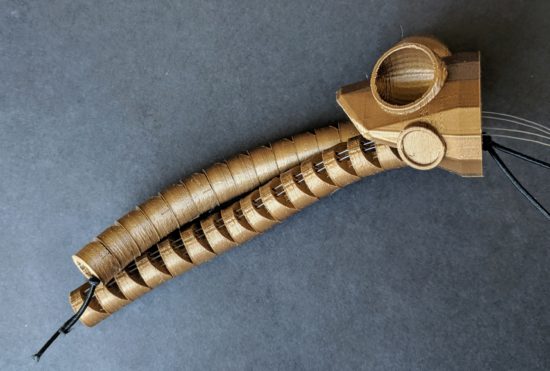
Well, it’s here!  Today is the start of #CephalopodWeek on ScienceFriday!  There’s a little progress to report on my, tentatively named, CuttleBot.  I’ll post a picture first, then get to describing the progress so far.

Assembled CuttleBot head, side view

In the prior post I listed some of my sources of inspiration.  Another such source is the work of Sean Charlesworth and his awesome Octopod, Gowanus Monster, and newly published Scuttleship.   ((If you like his work, be sure and check out his Etsy shop!))

This slideshow requires JavaScript.

Since I need special connectors for the articulated/articulating tentacles and I wasn’t able to edit the files in OpenSCAD, I wasn’t able to use Sean’s STL files.  However, I really like the aesthetic of his designs1 and how they really evoke the form of an octopus or cuttlefish.  Here’s a mock up I used to help me visualize what a full-scale Scuttlefish head might look like with the tentacles I designed.

Scuttlefish with placeholders for tentacles

Unfortunately, the Scuttlefish head and body parts are just a tad too large for my small printer’s build volume.  However, even if I were using a larger printer, I would still not want such a large robot as I’m hoping for this to be a shoulder-mounted companion.

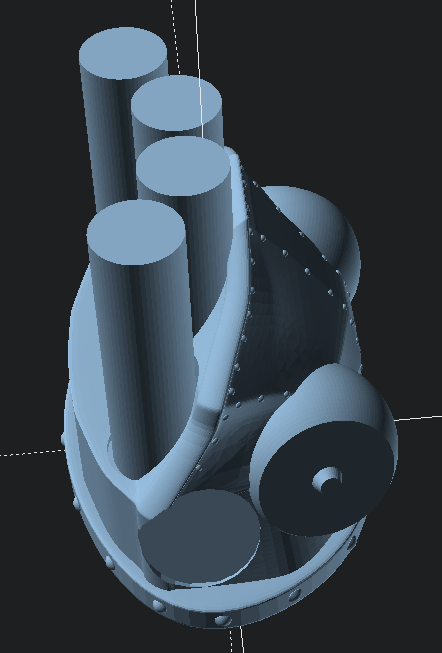
Thus, I began work creating an OpenSCAD cephalopod cuttlefish head inspired by Sean’s work.

This slideshow requires JavaScript.

Now that I had a design, I set the printer to work over night.  This design is mostly to see if the various parts for the tentacles would work with this head.  Since I want to put some LED’s in the eyes and possibly the mouth, I’ll need to hollow it out later.

The print took a little over an hour for the head.

This slideshow requires JavaScript.

How about a video of it working?

I’m very happy with the progress so far.  If I can shrink down the tentacle mechanisms, I can add more tentacles for more interesting emoting and animations.  The video just shows the results of me yanking the fishing line running through the CuttleBot’s head.

Here’s a few more sketches of how I am planning on putting it all together.

This slideshow requires JavaScript.

I might add some fabric frills / fins, instead of printed ones.  I was also contemplating letting the top “shell” of the CuttleBot be formed from 3D printed spines with a fabric or thin plastic sheeting covering.  This might help reduce weight or allow for internal lights to shine through the body.

Companion Robots: Building Robot Friends
  1. Cephalopod Robot Friend, the story so far
  2. Cephalopod Robot Friend Progress
  3. CuttleBot Body and OpenSCAD Design Tips
  4. An Assembled CuttleBot Body
  5. Building the Monocle Top Hat Cat for #MicrobitVirtualConcert
  6. Companion Robots and Maker Faire Season!
  1. Cephalopod Steampunk?! []

PCB Design with KiCAD

It is pretty incredible that you can find a written or1 video tutorial on virtually any topic to learn anything.  Today, I’m particularly thankful to Shawn Hymel, Sparkfun, and Digi-Key for putting together their Intro to KiCAD video series on printed circuit board design.

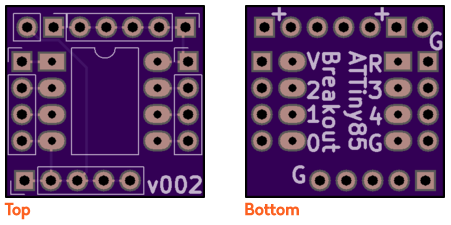
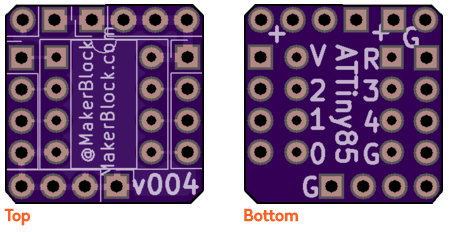
This series took me from knowing nothing at all about PCB layout and design to ordering my very first board through OSHPark.  My first design isn’t anything amazing – it was basically a breakout board for an ATTiny85 to make it easier to build small projects. 

My first ATTiny hacked tap light was a mess.  I soldered wires directly to the microcontroller making it a real pain to update. ((I ask you – is this the work of a sane man?)) I soon realized my mistake and soldered an 8-pin socket in its place so I could reprogram the chip easily.

This is the alternative to a custom PCB – a rat’s nest of wires soldered to a chip

Mercifully, Shawn’s tutorial series got me up and running very quickly.  This post is not meant to be a tutorial for KiCAD, but more like a “lab notebook” for the workflow to create a board.  If you haven’t built a board yet, go check out Shawn’s series and follow along in KiCAD.  If you are a novice like me, you might find these notes helpful:

Eeschema

  • If you launch Eeschema separately from KiCAD, you can save different versions of a schematic.  Keeping old versions of design files is hugely helpful to me and if you launch KiCAD directly, the option to save different file names and versions is not available!
  • The keyboard shortcuts in Eeschema are great.  With just a few, it’s possible to really get around quickly.
    • “Shift-A” and left click to place parts 
    • “M” to move parts
    • “R” to rotate parts
  • It is necessary to add “PWR_FLAG” to both the power and ground lines.
  • Double check your connections work by clicking on the bug icon. 
  • Assign the parts you intend to use to match up with the symbols using the “Assign PCB footprints” icon.
  • Save your work and “Generate netlist” to have something the Pcbnew will be able to work with.

Pcbnew

  • First configure the Design Rules by going to Setup -> Design Rules.  Shawn pulled these KiCAD Design Rules from the OSHPark.com website.  KiCAD has apparently changed a little since the version used on the OSHPark website, but the settings are easy enough to identify and change.
    • Net Classes Editor
      • Clearance: 0.01.  Track Width: 0.01.  Via Dia: 0.03.  Via Drill: 0.015.  uVia Dia: 0.03.  uVia Drill: 0.015.  Diff Pair Width: default.  Diff Pair Gap: default.
      Global Design Rules
      • Minimum track width: 0.006.  Minimum via diameter: 0.027.  Minimum via drill: 0.013Custom Track Widths: Track 1: 0.03
  • Read netlist” to bring your design over from Eeschema.
  • Placing parts and drawing lines gets a lot easier when you fine tune the Grid.  I started with 5.00 mils at first, then smaller figures to place smaller parts and features.
  • Once the parts are arranged in Pcbnew, connect the ground and power lines using 30 mil traces and everything else using 10 mil traces.
  • Create the outline for the board cutout by clicking on “Edge.Cuts” and drawing with the “Add graphic lines” tool.  Starting with my second board, I began cutting the corners off, so that they were a little nicer to hold and 
  • Label things on the “F.SilkS” and “B.SilkS” layers using the “Add text”‘ button.  Since my boards are so small, I wanted the text to be a fair bit smaller than the default settings.  I edited the text settings by going to Setup -> Text and Drawings.  
    • Copper text thickness:  0.007.  Text height:  0.035.  Text width:  0.035.
  • Create a copper pour with Place -> Zone, then choose “F.Cu”2 and “GND”.3 and draw a box around your board.  Then repeat for the “B.Cu” and “GND.”

Again, I’m a total newbie at circuit design.  If I got something wildly wrong, please let me know.  :)

  1. More frequently these days []
  2. Front copper []
  3. Ground, natch []

Regex: Back reference and Self reference in Regular Expressions

This is going to be a very short and niche post.

Sometimes I have to use regular expression or “regex” searches to parse a bunch of text, but I can’t remember how to use the search function to find a particular sequence of character and then reuse those found characters in the text I’m trying to replace it with.  In Notepad++, this would be done as follows:

  • Search string:   (7//*[0-9]*[0-9])\r\n
    • This will find all entries with “7/3” or “7/14” or similar digits with a line return afterwards
  • Replace string:  \1/2018;
    • This will replace those entries with “7/3/2018;” and “7/14/2018;”, respectively

The trick here is that the first set of search information is collected together within a set of parenthesis, which are then referenced back by the “\1”.  If you forget the parenthesis, the “\1” term won’t “know” what it’s supposed to be repeating.

Like I said, very niche.

[SOLVED] Google Pixel stuck in a boot loop after update and full storage

If your Google Pixel is stuck displaying the “G” and forever looping through a boot screen, Google’s support will tell you there is no hope and you’ll either have to do a complete factory reset and data wipe of your phone or send it in so they can do it for you.  However, if you are adventurous or have nothing to lose, there may still be hope.

I’m not saying this will work for you, or that you should even try what worked for me.  But, if you’re as desperate as I was, you would try absolutely anything to get your photos back.1

While out of town on vacation, away from WiFi and cell carrier internet access, I took a lot of photos and a few short videos.  My phone, a lowly Google Pixel with just 32GB2 of storage ran out of space.  It claimed it was at “100%” usage of storage with only a few dozen megabytes of space left.  I leaped into action, right there on the beach, deleting some large documents and ZIP files I had downloaded and then asked the Google Photos app to “Free Up Space.”  Pats on the back!  Job well done!

Except the Pixel had other ideas.  I reached into my pocket later to pull out the phone and take a picture to discover that it was on the white boot screen with the colorful Google “G” logo and a light gray “progress” bar undulating underneath it.  I thought this might be due to the phone overheat and put the phone away.  When I pulled it out later, I found the phone was still showing the same white boot screen.  I don’t know what caused this problem.  I don’t know if it was the Android system update from a few days ago, the storage being mostly full, possibly being too warm from being in my pocket, or what.

I tried everything I could think of and everything I could find to no avail:

  • I was unable to boot the phone into anything resembling active status, not even the last measure of “Safe Mode.”
  • I could boot the phone into “Recovery Mode” which looks like the Google Android robot lying on its back with a front panel open and some text underneath.  However, attempts to “Start”, “Reboot”, and use “Recovery Mode” were all unsuccessful.
  • I tried following the recommendations of the mysterious “Techno Bill” on the Pixel Google Groups to install ADB and Fastboot and then apply a Rescue OTA to the Pixel.
    • If nothing else, this one possibility gave me hope that I could still interact with my phone, somewhat.  I was careful to try out the specific OTA3 for my phone.  As you navigate the various menus in the Recovery screens for Android, you’ll need to take note of the version of Android you’ve got – so you can place the same version over it.
    • As best as I understand this fix, you’re basically overwriting a possibly damaged or corrupted operating system with a shiny new factory fresh version – and that doing so leaves your data intact.
  • The thing that gave me the most hope was this post by Mac_DG on Reddit.  Basically, they said, “If you can get there [the Google recovery screen], and it’s a software problem everything is fixable.”
  • I even spent 43 minutes4 chatting5 with Google’s Pixel support team member, Marlene.  She was sympathetic, but assured me in no uncertain terms that my data was lost forever.  My options were to send my phone to Google or take it to a repair facility for a diagnostic.

Finally, after much searching, I found this thread on Google’s product forum where someone named Jintoku described an identical problem to mine – and someone named Kara Alexander described an identical problem … and a solution suggested by Samuel Cooksey!  If you think you’ve got the same problem – nearly full storage, frozen or looping “G” screen, and unable to enter Safe Mode, it is absolutely worth your time scrolling through this thread to see if this solution may work for you.  It is also worthwhile reading through Jintoku’s conversation with Google’s representatives to see how hard they tried not to do a factory reset on the phone – and just how certain the Google representative was that this was the only possible solution short of outright replacement of the phone.

I will not duplicate the efforts of Techno Bill, Jintoku, Kara Alexander, Samuel Cooksey, and Mac_DG by repeating everything they’ve already said.  Rather, you may use any of the above links from my search to follow along and, hopefully, set you on the correct path.  If you would prefer a condensed guide, with links, I hope this will help:

  1. Follow Techno Bill’s guide on installing ADB and Fastboot.
    1. If you’re on Windows, you either need to follow Techno Bill’s guide on updating your computer’s “Path” or, if you’re a little more comfortable doing so, you can skip steps 1-8 and instead open the command prompt and type
      1. “SET PATH=%PATH%;c:\adb”
      2. The benefit of doing it this way is that you don’t have to permanently add this path to your operating system, it’s a lot faster and easier than Techno Bill’s method, and you don’t have to restart your computer
  2. Download the Developer Beta Preview OTA for your phone6 .
    1. It almost goes without saying that with words like “Developer”, “Beta”, and “Preview” in the title, this version of the Android operating system isn’t for the faint of heart.  If you don’t know what you’re doing or, like me, don’t have anything to lose, you shouldn’t be trying this.
  3. Follow Techno Bill’s guide to “sideload” the Rescue OTA to the Pixel.

If this blog post, that I write as my phone is running the Photos application right now to back up my vacation photos, saves even one person’s data, I will be an incredibly happy person.

  1. After all, what’s the worst damage I could do?  In a worst case scenario, the phone would still be unresponsive or bricked permanently []
  2. !!! []
  3. I believe this refers to an “over the air” operating system update []
  4. I was emailed the chat logs after the session ended []
  5. Since I had no phone, natch []
  6. Pixel, Pixel XL, Pixel 2, Pixel 2 XL []

Loudest 3D Printed Whistle – now with 100% more science

Extremely loud and compact emergency whistle v1

I ordered a decibel meter from Amazon the other day so I could drop some science on the claims from various 3D printed whistles on Thingiverse.  There are several that claim to be the loudest.  Well, today, I began my quest to put these claims to rest.

The closer the decibel meter is to a sound source, the higher it registers.  To eliminate some of these variables, I placed the decibel meter on a counter in front of me and a chair 24 inches in front of that.  For each of the whistles I was testing I stood just behind the chair and gave the whistle three hearty puffs.  The decibel meter, which was set to record and display the “max” reading, would then tell me the loudest reading for that set of three whistle toots.

Without further ado, I declare the “Extremely loud and compact emergency whistle” by Whistleblower on Thingiverse the clear winner at 121.1 decibels.  Both whistles by this designer took the top two scientifically determined spots.

NameThingiverse IDMass (grams)PricePrint Time (minutes)DecibelsSubjective Rank
Extremely loud and compact emergency whistle [v1]29330213.9$0.1222121.11
Extremely loud and compact emergency whistle [v2]29330213.7$0.1118111.53
v29 (Over 118 db!)117916013.9$0.4290110.44
2 chamber whistle (LOUD) [w5]26165128.1$0.2449109.52
Emergency Whistle with Solidworks 2014 source4951721.2$0.047101.85
Whistle Ring Modified [v2]20271151.6$0.05990.86

Just how loud is 121.1 decibels? 1  Well, for starters, it’s just above the pain threshold of 120 decibels.  It’s louder than:

  • Your iPod headphones at maximum volume
  • A baby crying, next to your ear
  • A full symphony orchestra
  • The subway
  • A sporting event
  • A chainsaw
  • A jetski
  • A marching band

It’s on par with:

  • Thunder
  • A shotgun
  • An ambulance siren
  • A rock concert

And, if you didn’t have earplugs, you would exceed the daily safe exposure limit for 121 decibels in 7 seconds.

There may be louder whistle on Thingiverse2 and, if so, please let me know.  I’ll print the model and test against the others in my arsenal.

Loudest 3D Printed Whistle

  1. MOAR WHISTLES
  2. Loudest Whistle on Thingiverse… The Answer Might Surprise You!
  3. Loud 3D Printed Whistle Test, Take 2
  4. Loudest 3D Printed Whistle – now with 100% more science

  1. This page has several charts to help explain. []
  2. Or some other online 3D design repository []

Loudest Whistle on Thingiverse… The Answer Might Surprise You!

You'll need a pair of these earplugs
You’ll need a pair of these

Whistles have been a staple on Thingiverse for years, probably because they’re such a small, simple, and impactful way to demonstrate the usefulness of a 3D printer. 1 I don’t know how many there are, but there are a LOT of whistles on Thingiverse.  I’ve been curious about which whistles on Thingiverse are the loudest and conducted a semi-scientific experiment to figure this out.

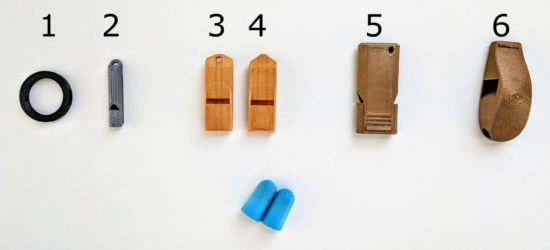
Six whistles
Six whistles

I say “semi-scientific” because I don’t have a decibel meter.2 My methodology was to have my family at one end of the house while I went to the other side, closed the door, put in my earplugs, and wailed away on six whistles as hard as I could.  In any case, here’s my findings:

NameThingiverse IDMass (grams)PricePrint Time (minutes)RankDecibels
Extremely loud and compact emergency whistle [v1]29330213.9$0.12221TBD
2 chamber whistle (LOUD) [w5]26165128.1$0.24492TBD
Extremely loud and compact emergency whistle [v2]29330213.7$0.11183TBD
v29 (Over 118 db!)117916013.9$0.42904TBD
Emergency Whistle with Solidworks 2014 source4951721.2$0.0475TBD
Whistle Ring Modified [v2]20271151.6$0.0596TBD

I added a few columns that may (or may not) be of interest to you.  I indicated the weight of each whistle, because sometimes I want to know how many whistles I could produce off a single spool of plastic.3  Sometimes I want to produce the loudest whistle for the time I have to produce a whistle.4  I showed the cost per model5 , because it brings me so much joy to know I can make my daughter’s classroom louder than a jet engine for less than the cost of a pack of gum.

I know there are a number of important variables are are simply not addressed in this test.  Different frequencies sound louder or might be easier to hear through the door.  I tried to blow each whistle the same amount, but some whistles are louder with less forceful or more forceful blows.  Once that decibel meter shows up, I’ll be sure to post another update.

Loudest 3D Printed Whistle

  1. MOAR WHISTLES
  2. Loudest Whistle on Thingiverse… The Answer Might Surprise You!
  3. Loud 3D Printed Whistle Test, Take 2
  4. Loudest 3D Printed Whistle – now with 100% more science

  1. Photo by mosambers []
  2. Yet.  At <$20 on Amazon, you can be sure I’ll be adding actual readings soon []
  3. With careful design, approximately 2,500 whistles per kilogram of plastic []
  4. The v2 of this whistle is the clear winner []
  5. Assuming a spool costs about $30, shipped []
Test